IOC Snapshot Intraoral Camera Manual for Dentrix Image 5.1
In this example, I’ll configure IOC Snapshot to support two different intraoral cameras: the Perfect Cam and the Daryou DY-50 Camera. The Blue Camera button will be assigned to the PerfectCam, while the Green Camera button will be assigned to the Daryou. This setup is ideal for computers with two different intraoral cameras, allowing users to easily switch between them by selecting the corresponding camera button in IOC Snapshot.
Note: When the Perfect Cam is plugged in, the IOC Snapshot program will patch Viper.exe for 1280×720 resolution and when unplugged the patches will be removed, which will allow for 640×480 resolution (Daryou). For this to work, when the cameras are plugged in or unplugged Dentrix Image must be closed.
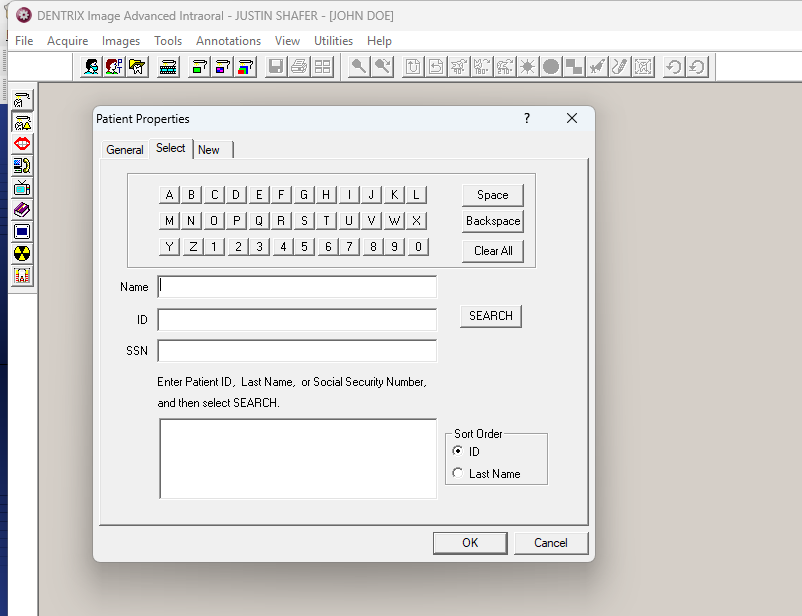
I have also patched Dentrix Image to allow searching for patients, if you need this, check out my blog, because newer Dentrix doesn’t allow bridging to Dentrix Image any longer.
1. Install the IOC Snapshot software. If you need a link for the download it is:
https://iocsnapshot.com/IOC_Snapshot.exe
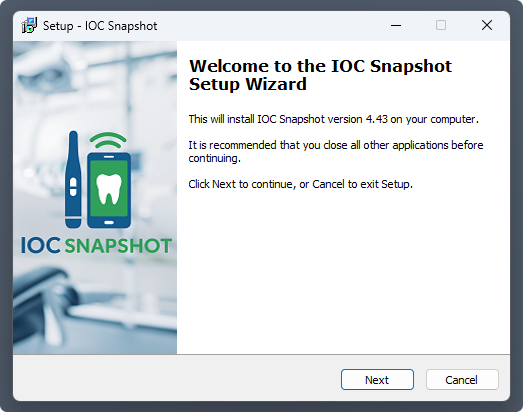
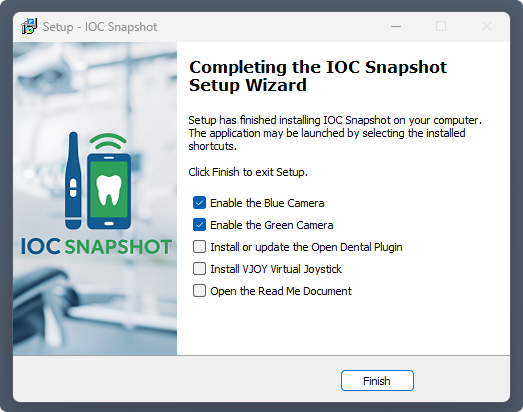
At the end of the installer you will see this window with checkmark boxes as options. Checkmark the Green camera as the Blue Camera will already be checkmarked.
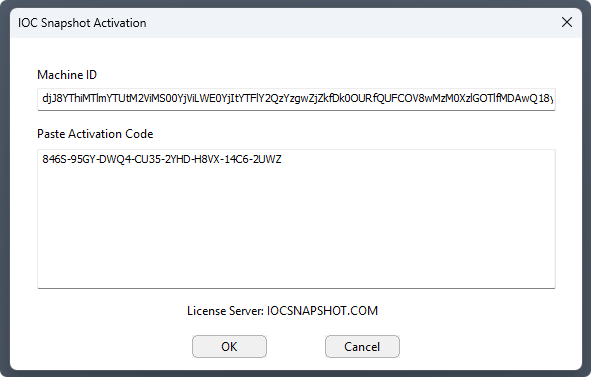
Enter in the license key when you see this window. If you would like to use a trial key, this one is good for 2 weeks.
846S-95GY-DWQ4-CU35-2YHD-H8VX-14C6-2UWZ
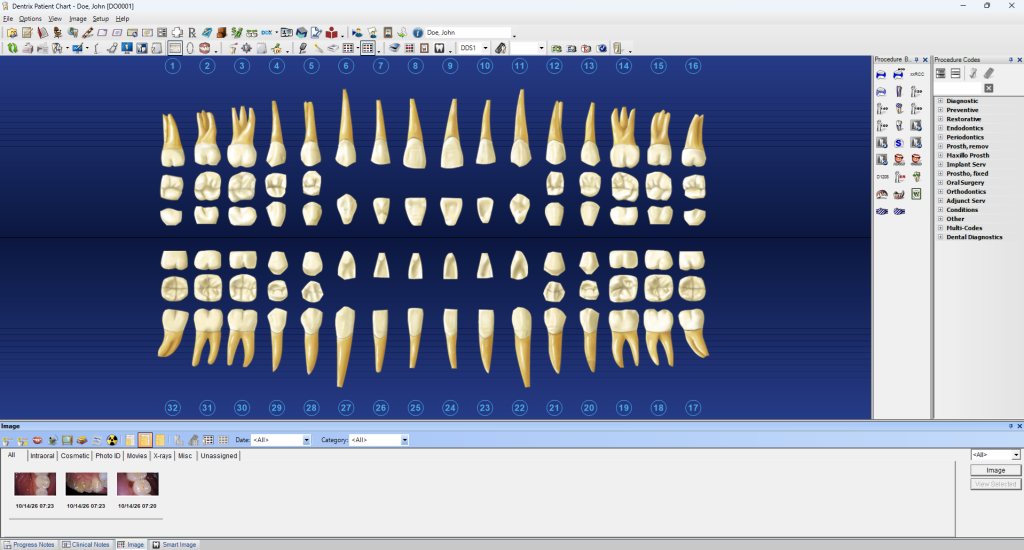
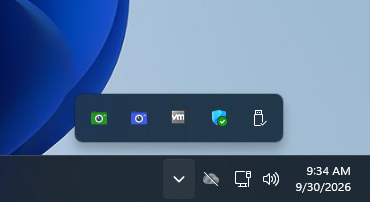
2. Now we are going to configure the Blue and Green Cameras. They have icons in the system tray. Each program needs to be told what camera you are using and what program you are using.
Right click the Blue Camera and go to Dentrix and then click on Dentrix Image. Repeat this for the Green Camera.
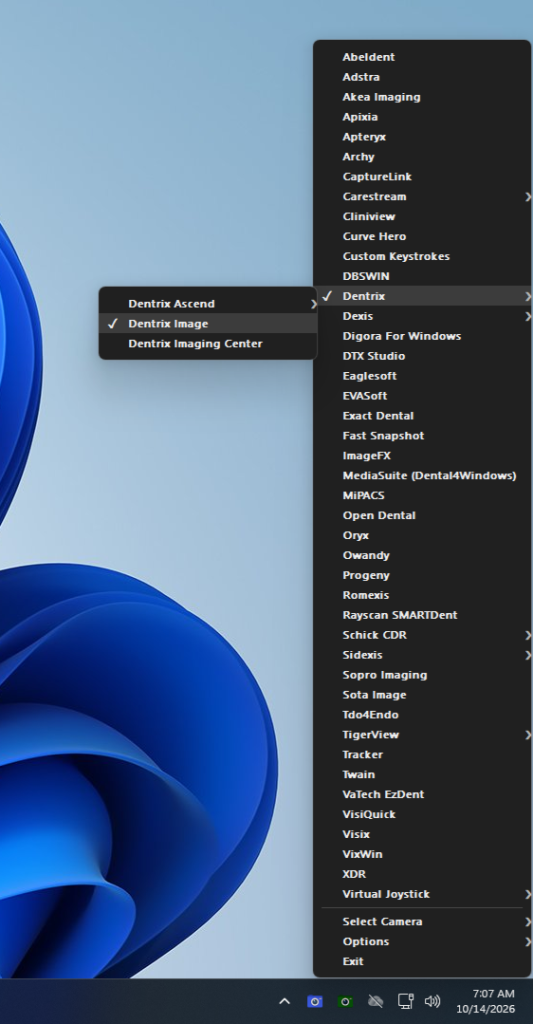
Now the Blue and Green camera need to be told what cameras they are going to use. Right click the Blue camera and go to Select Camera and select PERFECT CAM.
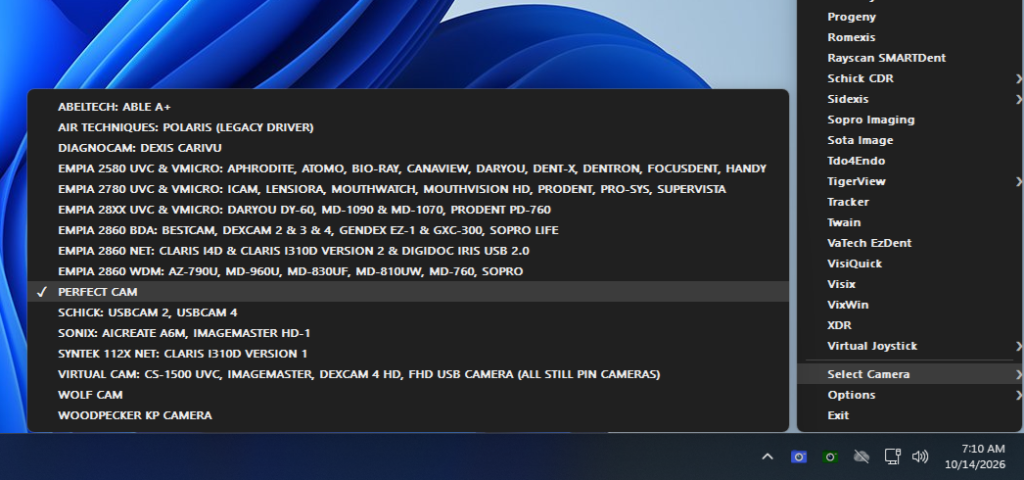
Right click the Green camera and select EMPIA 2580 UVC.
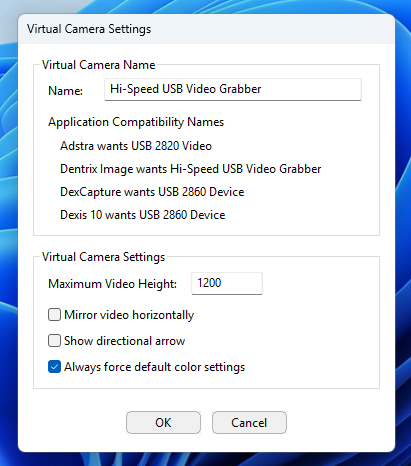
3. Now we must change the name of the Virtual Camera. Right click either the Blue or Green camera and go to Options and click on Virtual Camera Settings. Change the name of the camera to Hi-Speed USB Video Grabber, and checkmark Always force default color settings. Click OK.
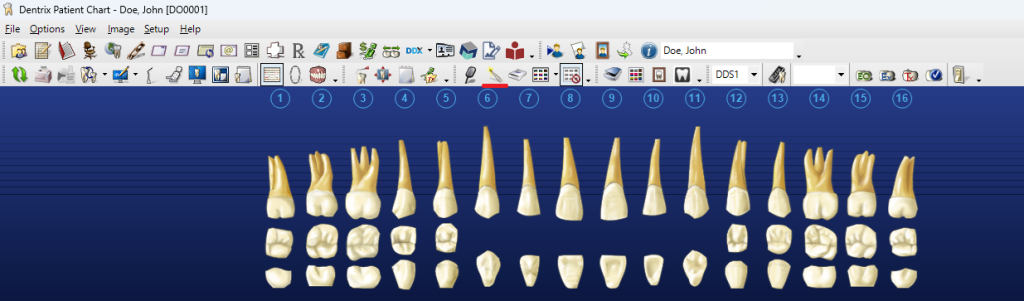
4. Run the Dentrix Chart and click on the IntraOral camera icon to run Dentrix Image:
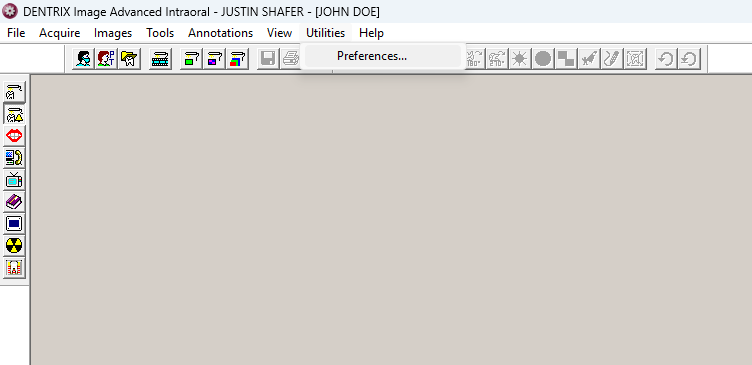
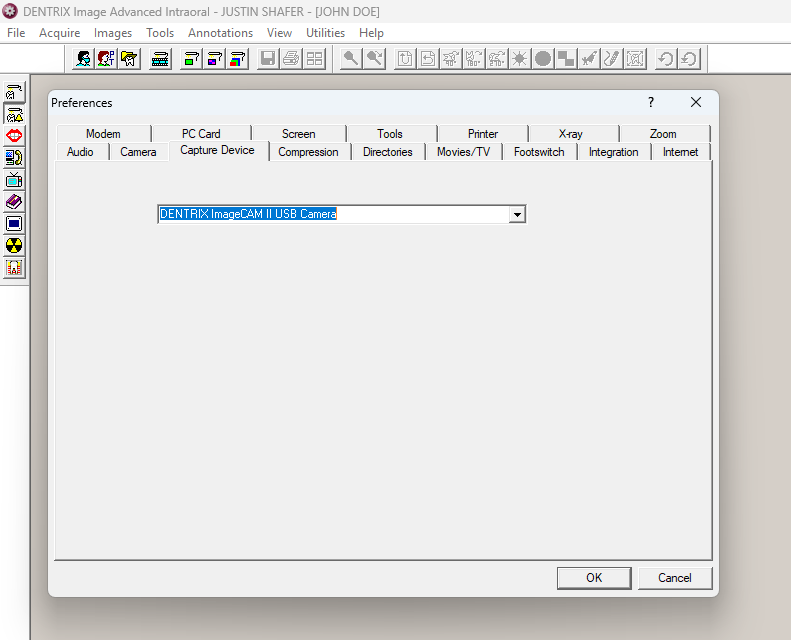
5. Now click on Utilities and Preferences in Dentrix Image
6. Click on the Capture Device tab and use the drop-down menu and select DENTRIX ImageCam II USB Camera and click the OK button.
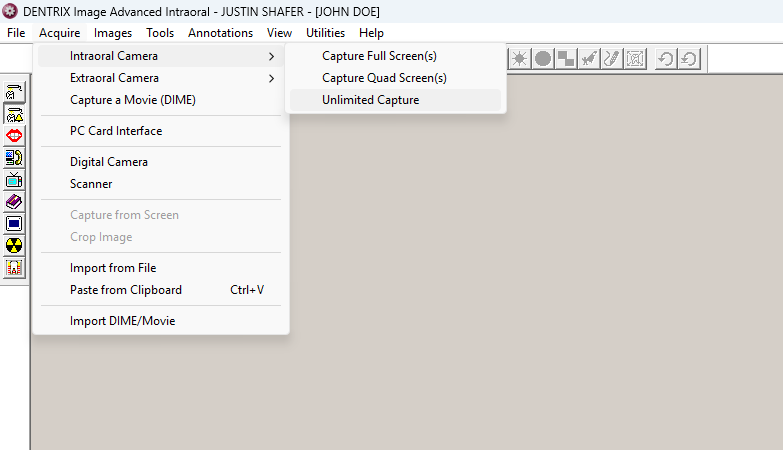
7. Now you are ready to use the camera. Either you can use the Dentrix Chart’s Intraoral Camera Icon to use the camera, OR you can click Acquire, Intraoral Camera, and click on Capture Full Screen since we are already inside of Dentrix Image.
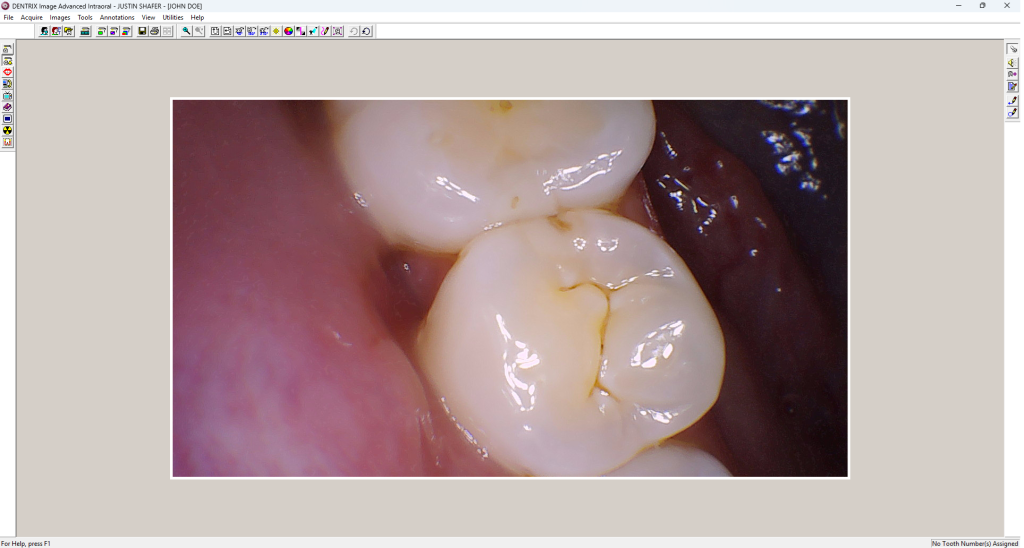
8. Now you may take images with the camera’s capture button. Each time you click the capture button on the camera, an image will be saved into Dentrix Image. Click on Done when you are finished.
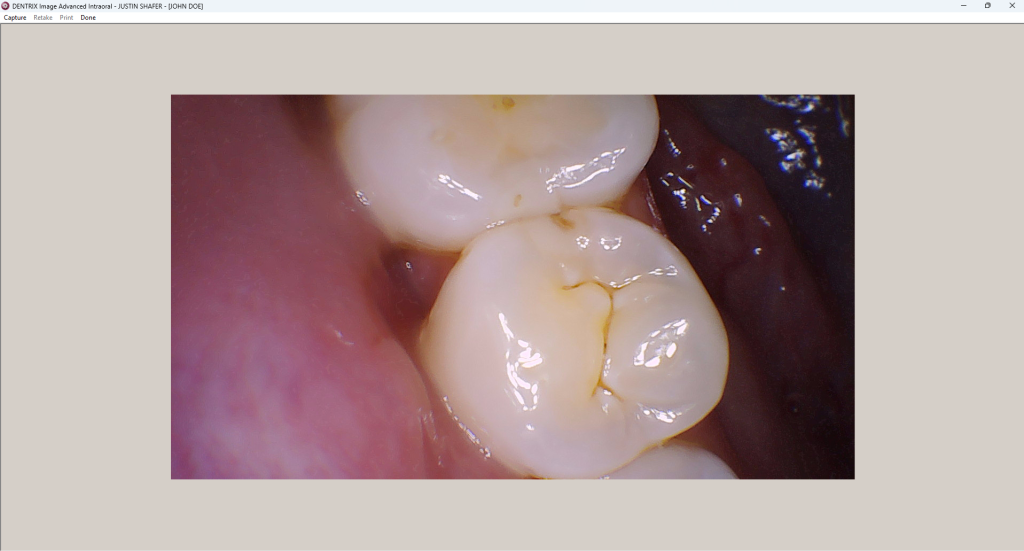
9. The images are now saved into Dentrix Image, and accessible from the Dentrix Chart.