Perfect Cam Manual for Dentrix Image 5.1
Note: Dentrix Image only supports 640×480 so I have a patch that patches it to do 1280×720. This patch is installed during the setup of PerfectCam Utility and removed during uninstall. This is different then IOC Snapshot as that does on the fly patching depending on what camera is plugged in.
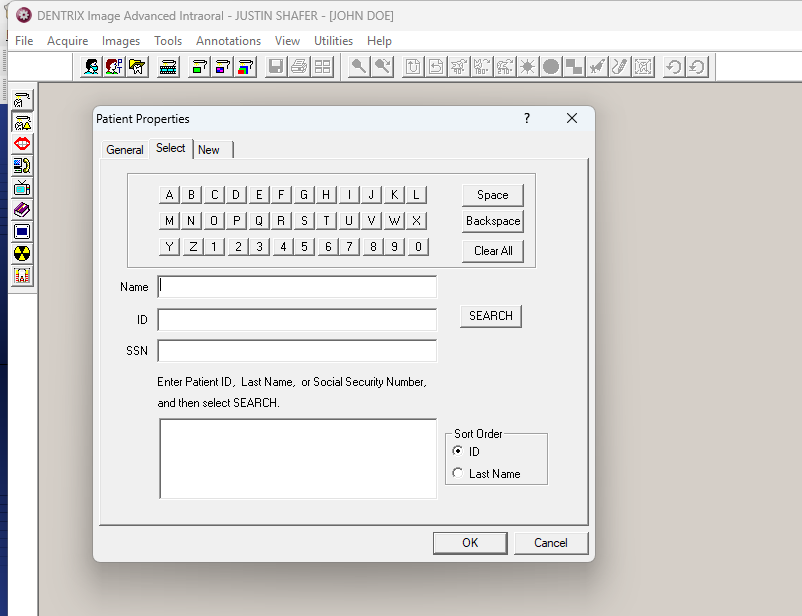
I have also patched Dentrix Image to allow searching for patients, if you need this, check out my blog, because newer Dentrix doesn’t allow bridging to Dentrix Image any longer.
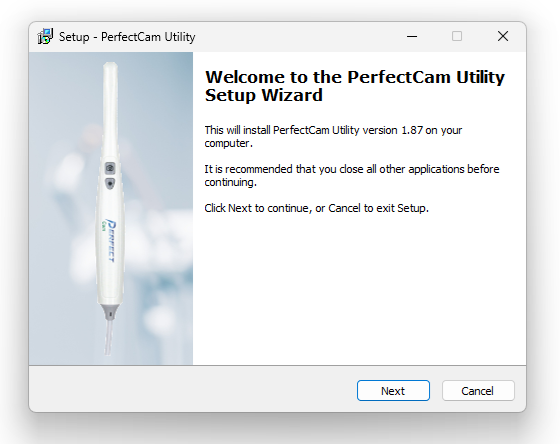
1. Install the PerfectCam Utility software. If you need a link for the download, it is:
https://iocsnapshot.com/PerfectCamSetup.exe
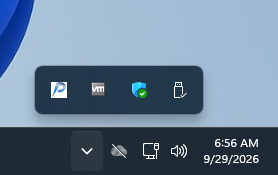
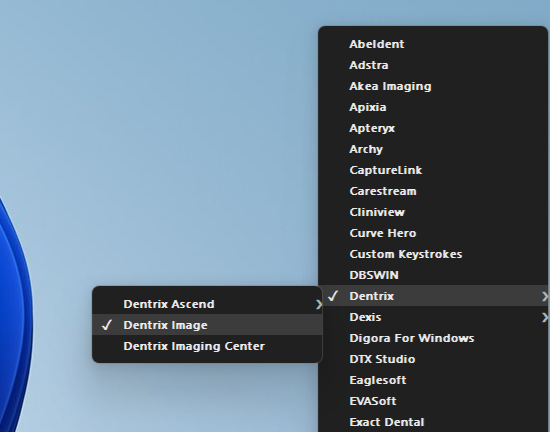
2. After the installation, you will see the PerfectCam icon in your system tray. Right-click it and select Dentrix, and then Dentrix Image.
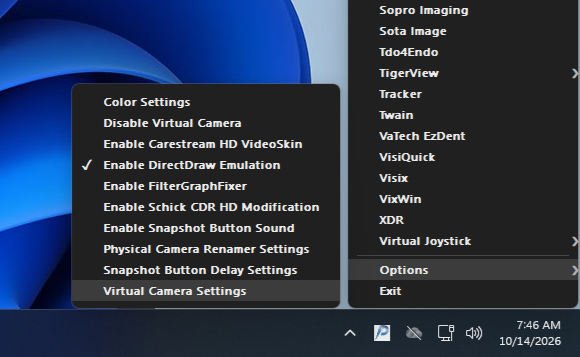
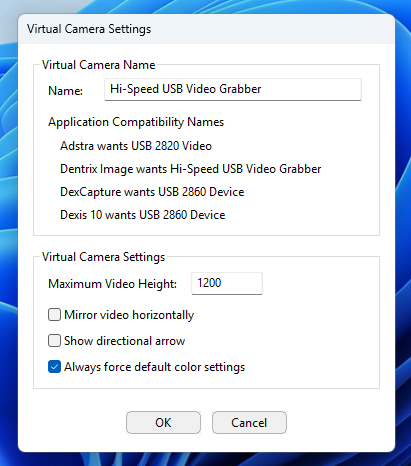
3. Now we must change the name of the Virtual Camera. Right click the PerfectCam Utility and go to Options and click on Virtual Camera Settings. Change the name of the camera to Hi-Speed USB Video Grabber, and checkmark Always force default color settings. Click OK.
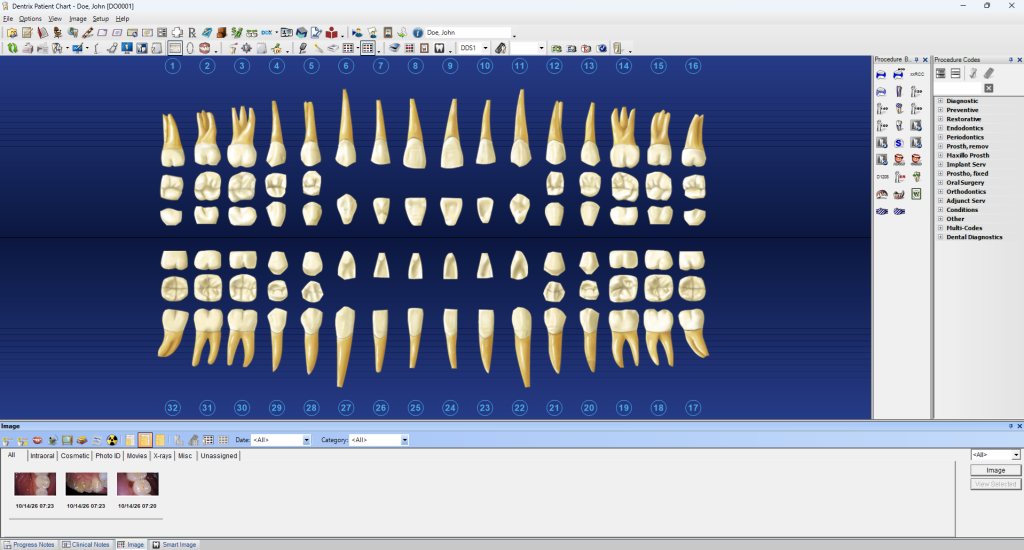
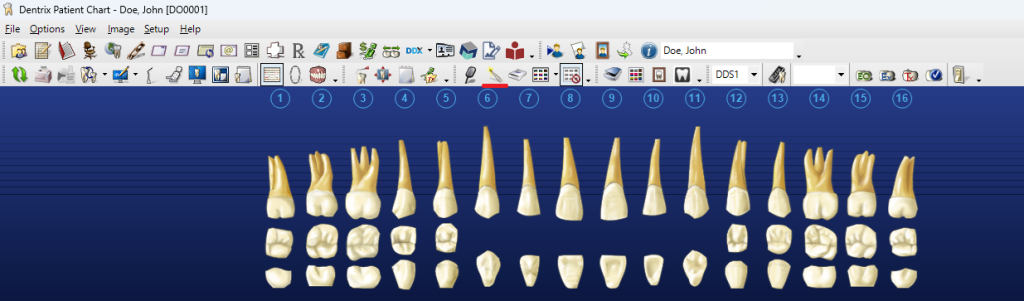
4. Run the Dentrix Chart and click on the IntraOral camera icon to run Dentrix Image:
5. Now click on Utilities and Preferences in Dentrix Image
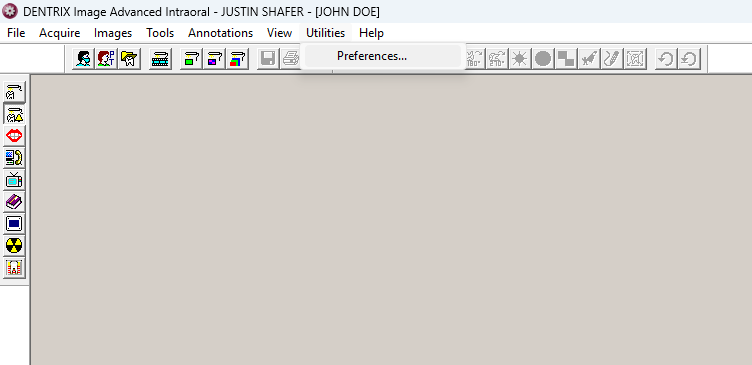
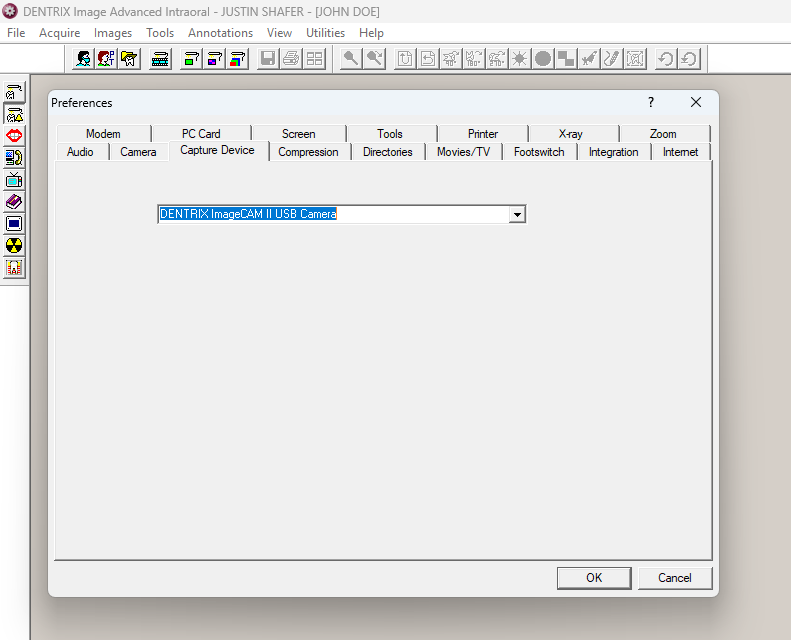
6. Click on the Capture Device tab and use the drop-down menu and select DENTRIX ImageCam II USB Camera and click the OK button.
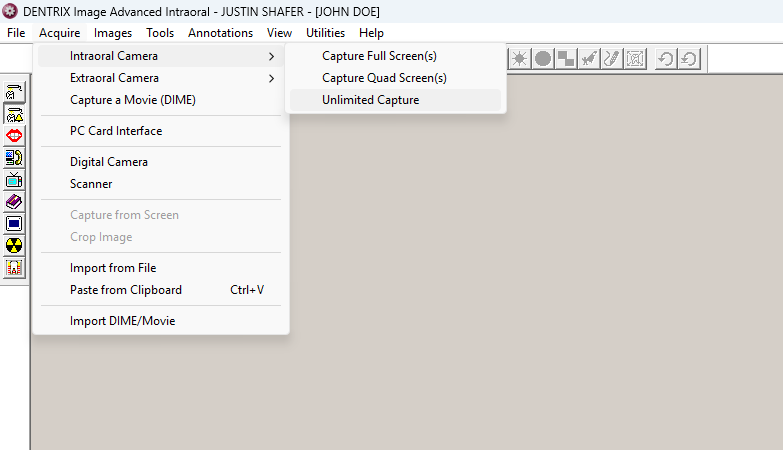
7. Now you are ready to use the camera. Either you can use the Dentrix Chart’s Intraoral Camera Icon to use the camera, OR you can click Acquire, Intraoral Camera, and click on Capture Full Screen since we are already inside of Dentrix Image.
8. Now you may take images with the camera’s capture button. Each time you click the capture button on the camera, an image will be saved into Dentrix Image. Click on Done when you are finished.
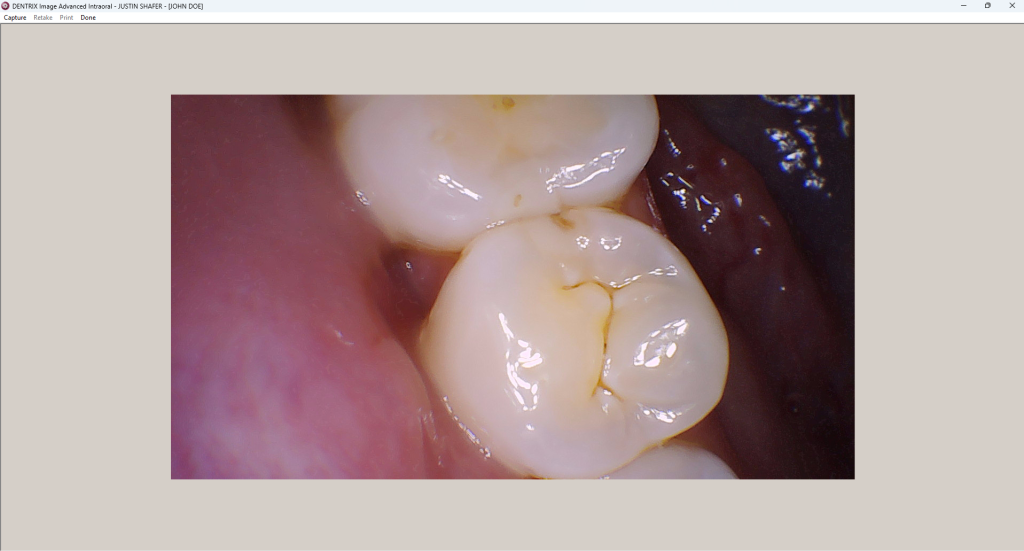
9. The images are now saved into Dentrix Image, and accessible from the Dentrix Chart.