IOC Snapshot Intraoral Camera Manual for Carestream Imaging 8
In this example, I’ll configure IOC Snapshot to support two different intraoral cameras: the Perfect Cam and the Prodent PD-760 HD Camera. The Blue Camera button will be assigned to the Perfect Cam, while the Green Camera button will be assigned to the Prodent PD-760 HD Camera. This setup is ideal for computers with two different intraoral cameras, allowing users to easily switch between them by selecting the corresponding camera button in IOC Snapshot.
1. Install the IOC Snapshot software. If you need a link for the download it is:
https://iocsnapshot.com/IOC_Snapshot.exe
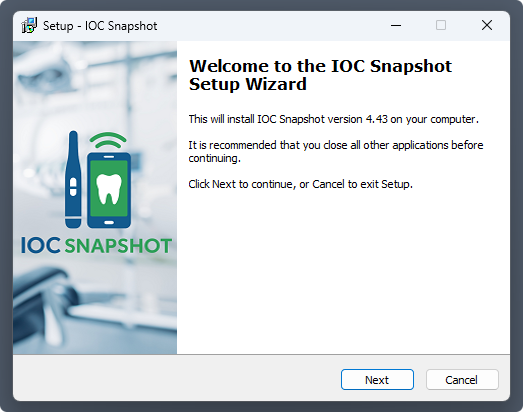
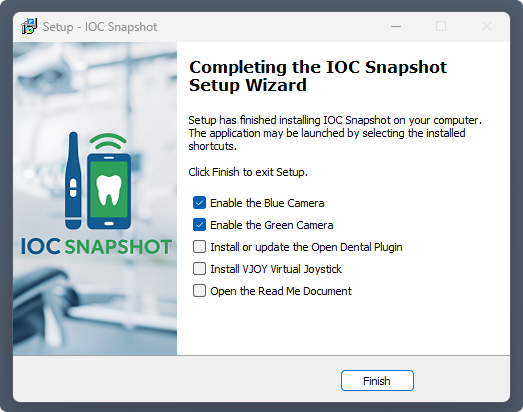
At the end of the installer you will see this window with checkmark boxes as options. Checkmark the Green camera as the Blue Camera will already be checkmarked.
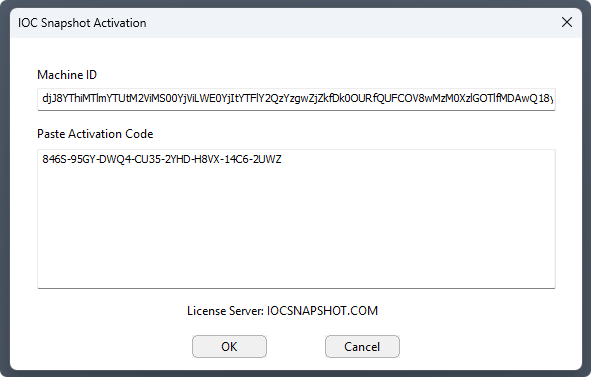
Enter in the license key when you see this window. If you would like to use a trial key, this one is good for 2 weeks.
846S-95GY-DWQ4-CU35-2YHD-H8VX-14C6-2UWZ
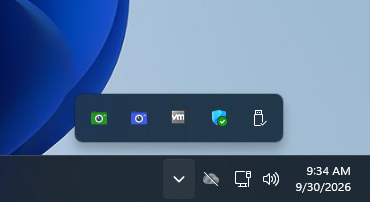
2. Now we are going to configure the Blue and Green Cameras. They have icons in the system tray. Each program needs to be told what camera you are using and what program you are using.
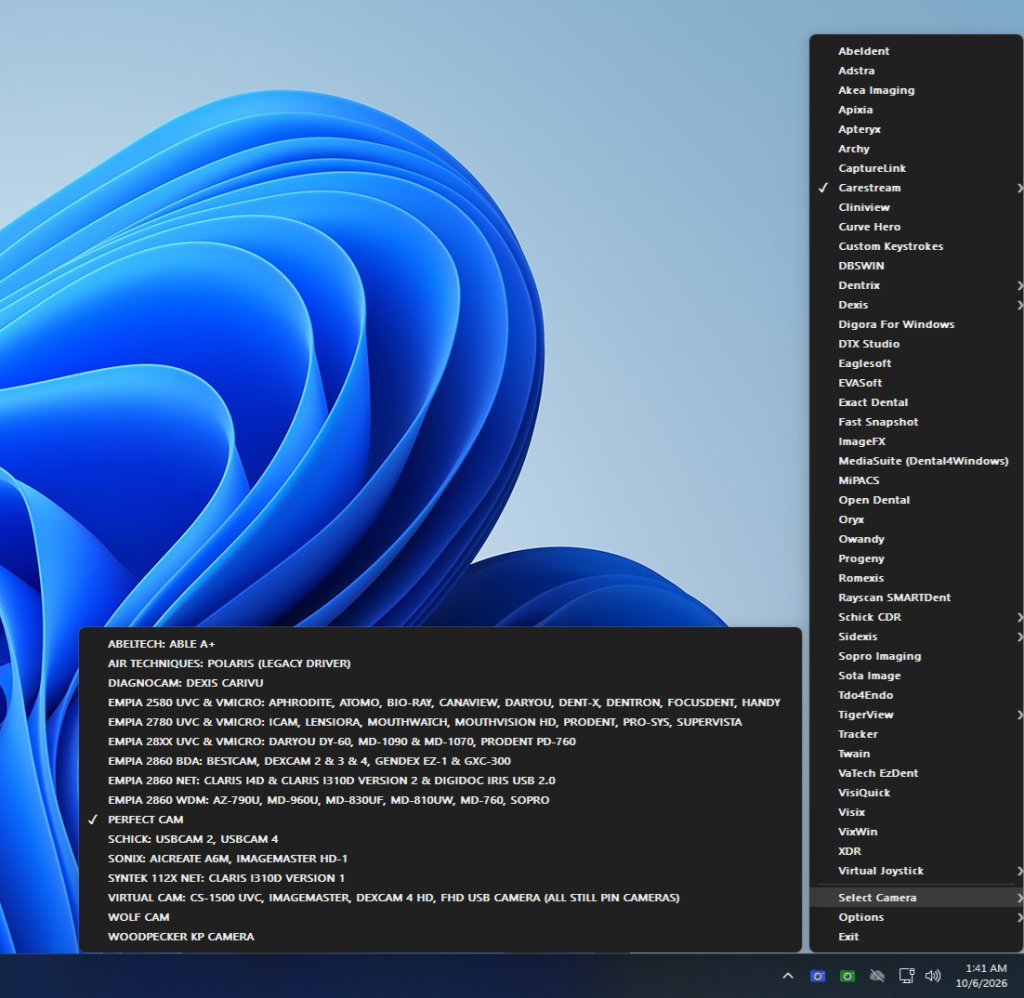
Right click the Blue Camera and go to Select Camera and I will choose PERFECT CAM. Right click the Blue camera again and select Carestream. Do not select Carestream Snapshot.
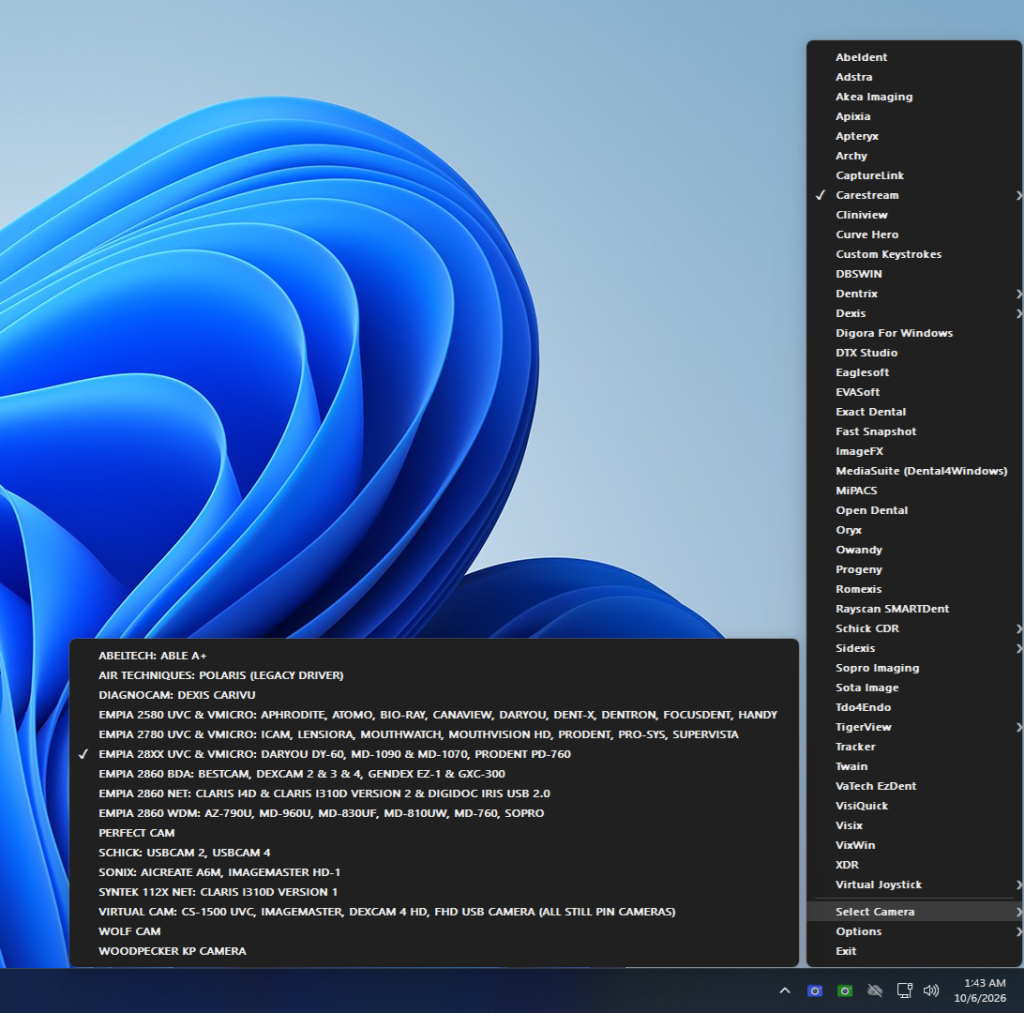
Repeat this for the Green Camera except choose the PRODENT PD-760.
4. Enable the Carestream HD Video Skin for either the Blue or Green camera. It is under Options.
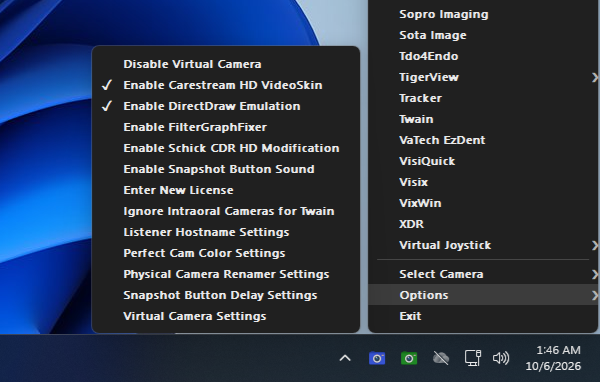
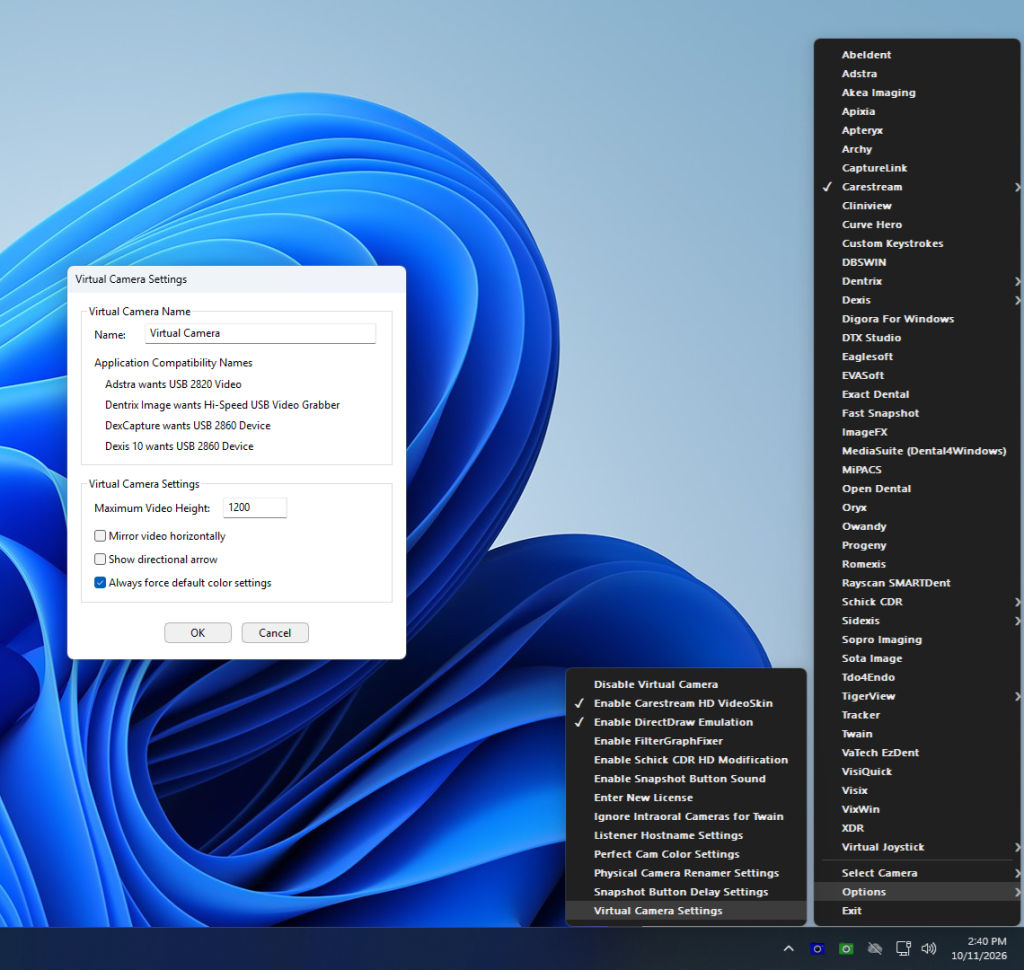
5. Configure the Virtual Camera. Right click either the Blue or Green Camera, go to Options and click Virtual Camera Settings. Set the Virtual Camera Maximum Height to 1200. Checkmark the box that says Always Force Default Color. This will ensure that you can switch between the 2 different physical cameras and Apteryx won’t set the color based on the previous camera that was present. Click OK to save the settings.
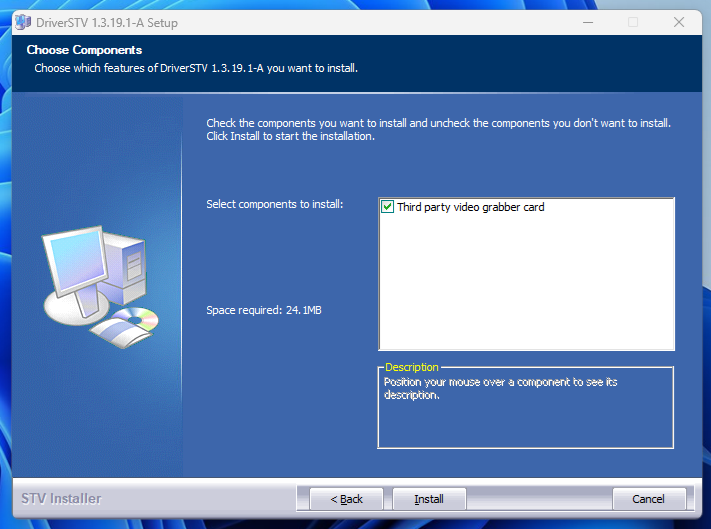
6. Install the STV Setup Program to enable third party cameras to work in Carestream\Kodak.
https://iocsnapshot.com/SetupSTV_2.exe
Run the installation and check the box for Third Party Video Capture option.
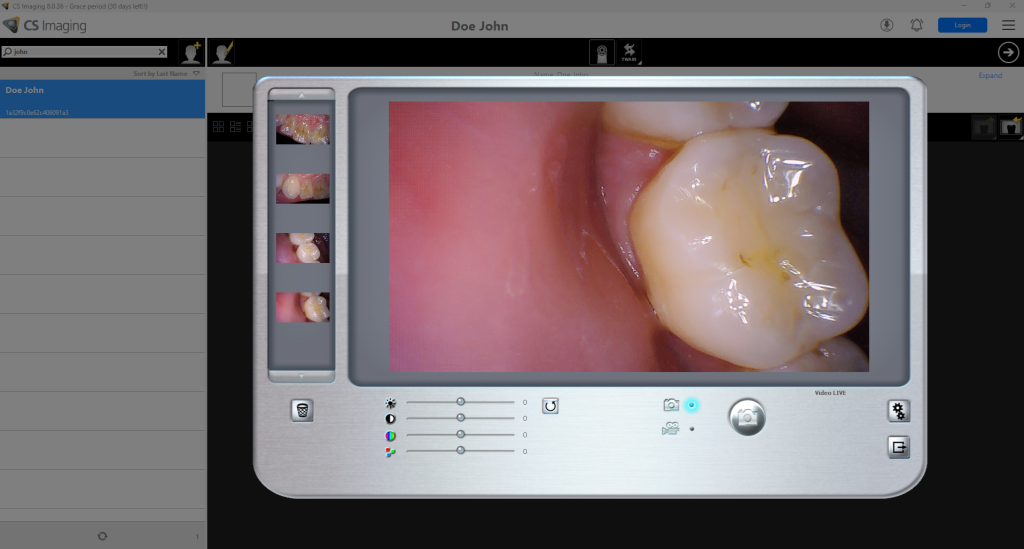
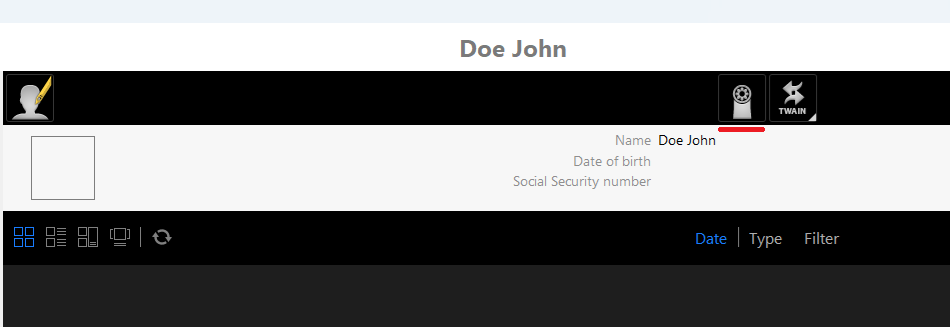
7. Run Kodak Digital Imaging or Carestream Imaging and open a patient. Click the intraoral camera icon in the toolbar.
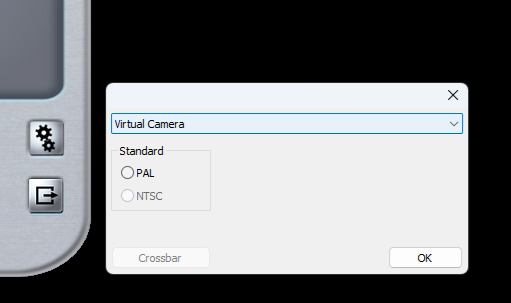
8. Click the Settings Gear button and switch the camera to the Virtual Camera.
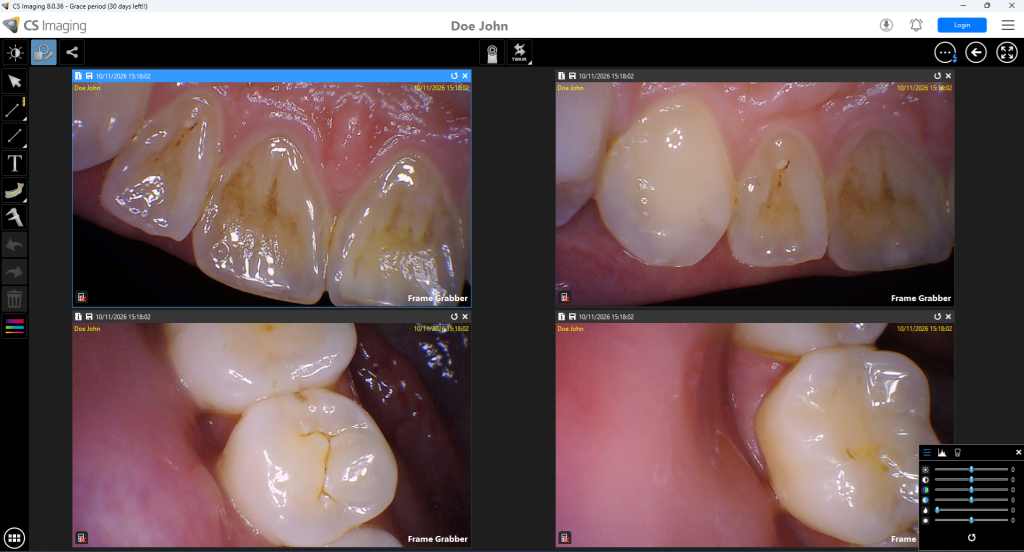
9. You are now ready to take images with either the Prodent PD-760 or Perfect Cam. When you are finished, click the Leave icon.