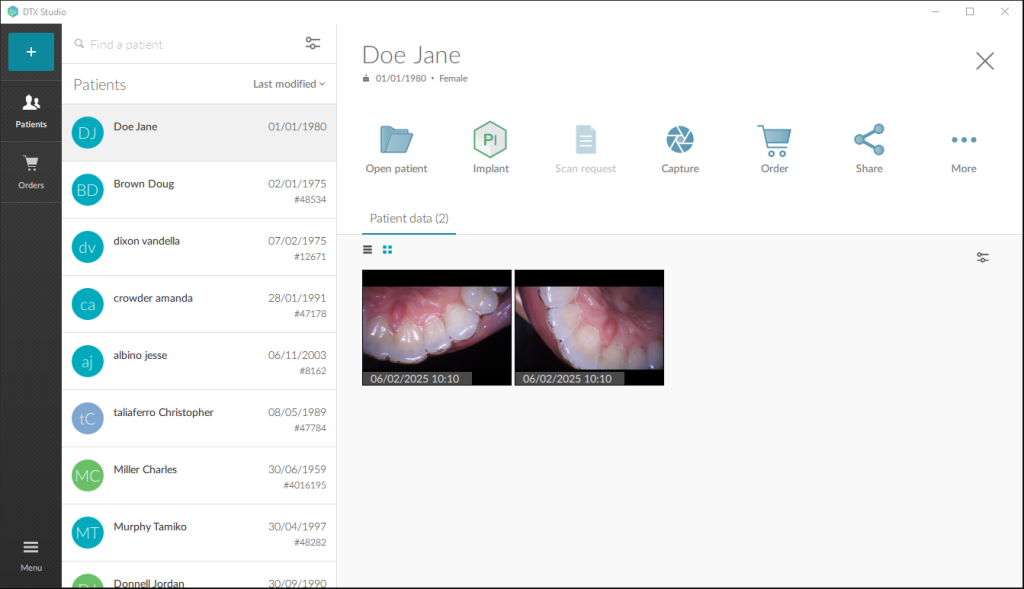
IOC Snapshot Intraoral Camera Manual for DTX Studio
In this example, I’ll configure IOC Snapshot to support two different intraoral cameras: the Perfect Cam and the Woodpecker KP Camera. The Blue Camera button will be assigned to the Perfect Cam, while the Green Camera button will be assigned to the Woodpecker KP Camera. This setup is ideal for computers with two different intraoral cameras, allowing users to easily switch between them by selecting the corresponding camera button in IOC Snapshot.
1. Install the IOC Snapshot software. If you need a link for the download, it is:
https://iocsnapshot.com/IOC_Snapshot.exe
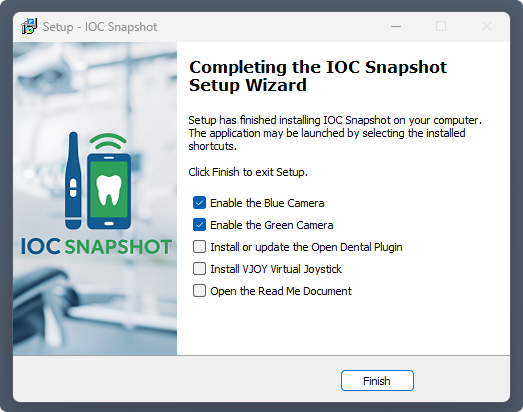
At the end of the installer you will see this window with checkmark boxes as options. Checkmark the Green camera as the Blue Camera will already be checkmarked.
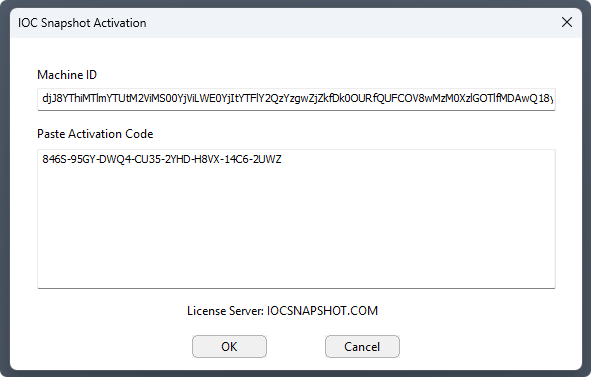
Enter in the license key when you see this window. If you would like to use a trial key, this one is good for 2 weeks.
846S-95GY-DWQ4-CU35-2YHD-H8VX-14C6-2UWZ
2. Now we are going to configure the Blue and Green Cameras. They have icons in the system tray. Each program needs to be told what camera you are using and what program you are using.
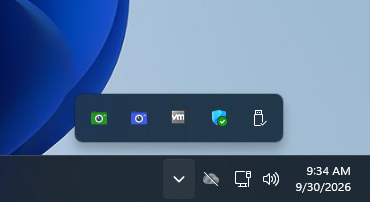
Right click the Blue Camera and select DTX Studio. Right click the Blue Camera again and go to Select Camera and select PERFECT CAM.
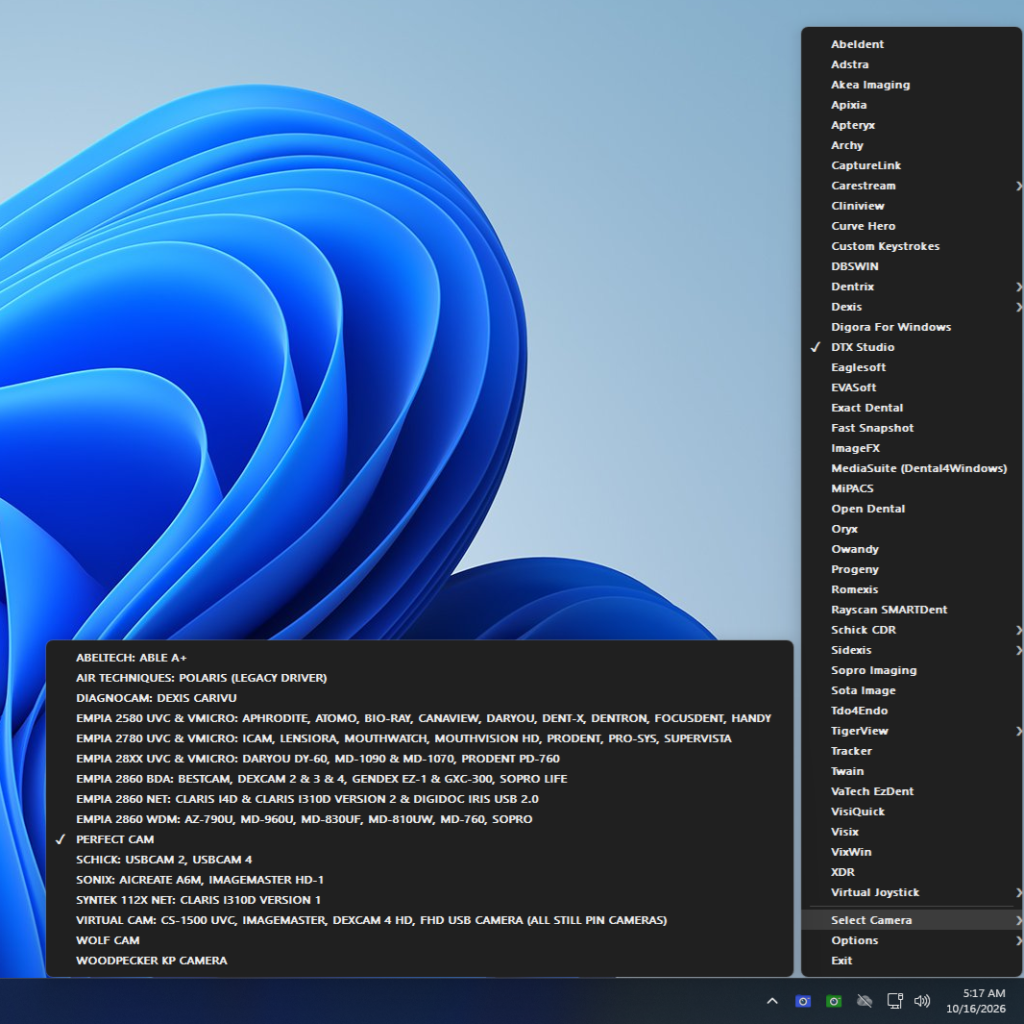
Repeat this for the Green Camera except select WOODPECKER KP CAMERA.
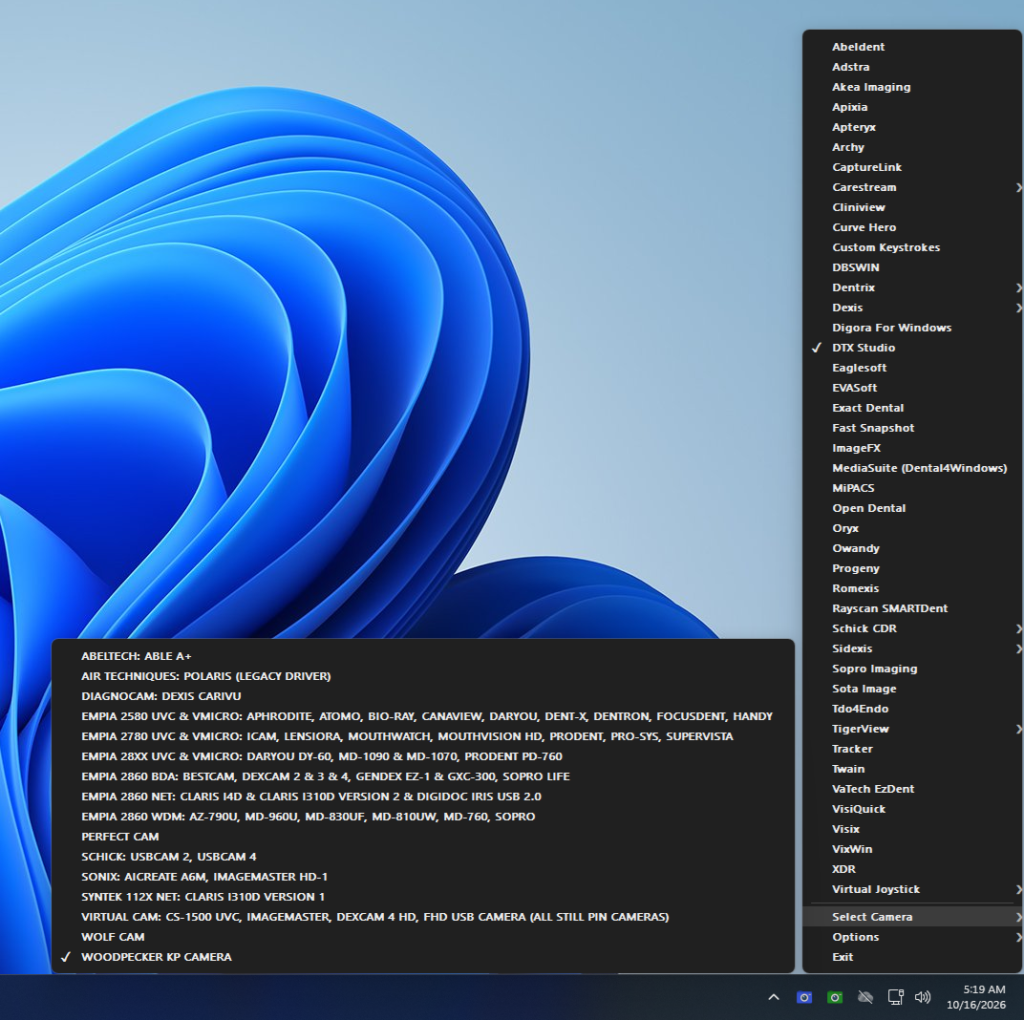
Now both the Blue and Green camera have been configured.
3. Open DTX Studio Clinic and select a patient. Click on Capture.
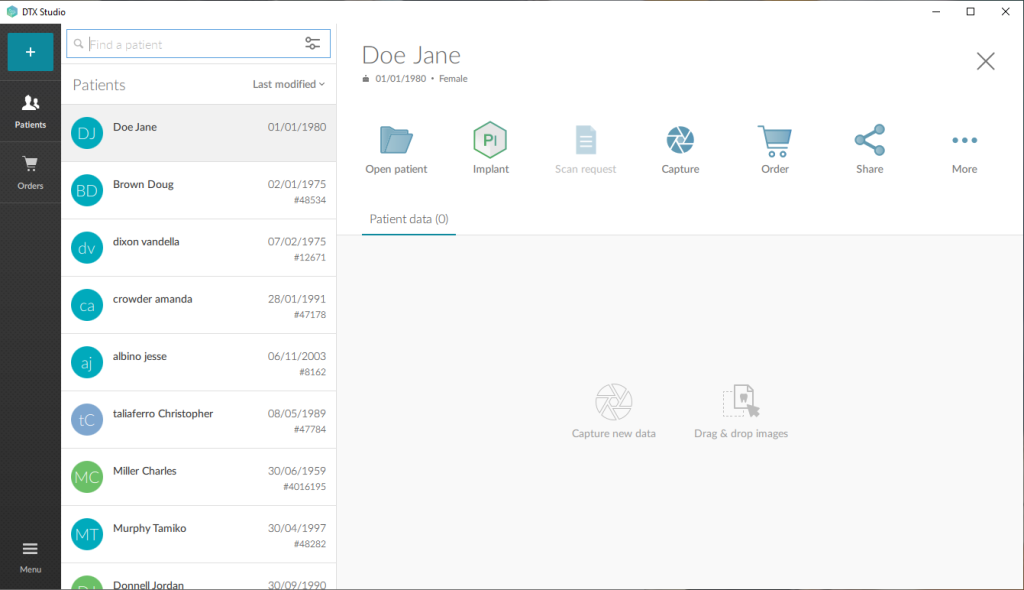
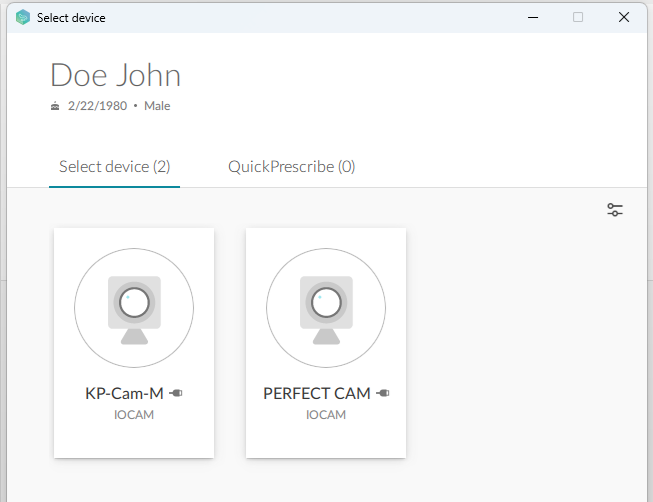
4. In the Select device window, click on either PERFECT CAM or KP-Cam-M.
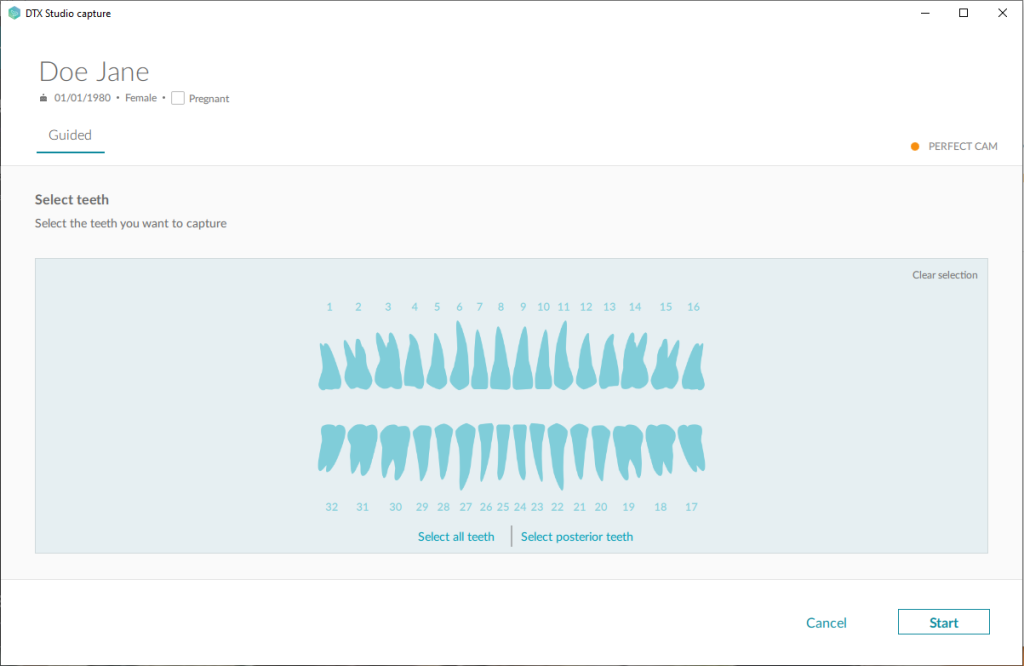
5. Select the teeth that you want available for acquisition, then click the Start button.
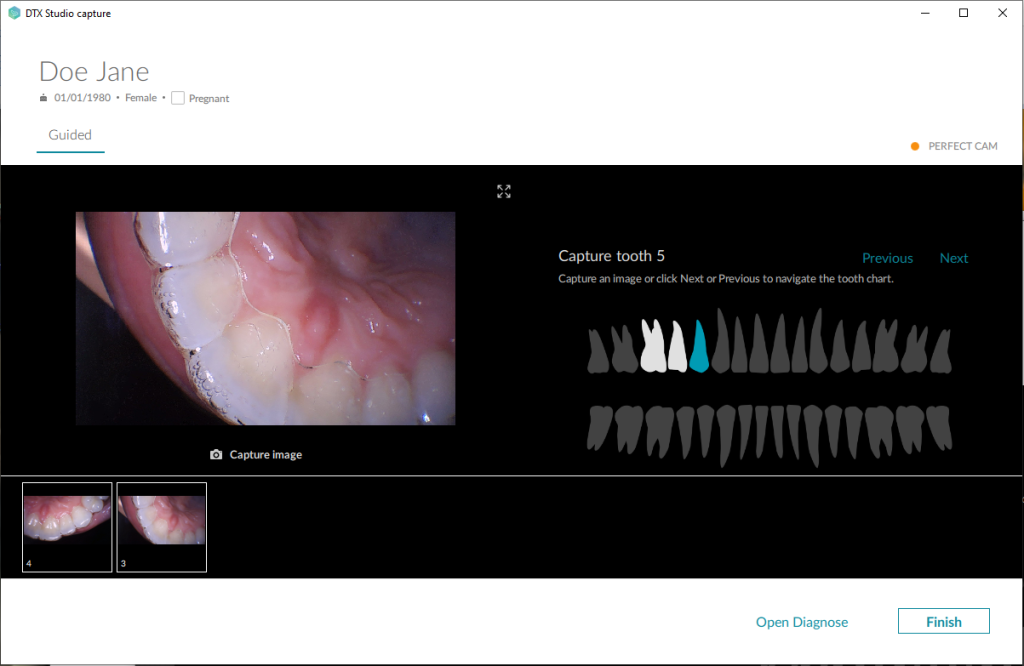
6. Use the capture button on the camera to take pictures. Click on the Finish button when finished.
7. All done.