Perfect Cam Manual for Dexis 10
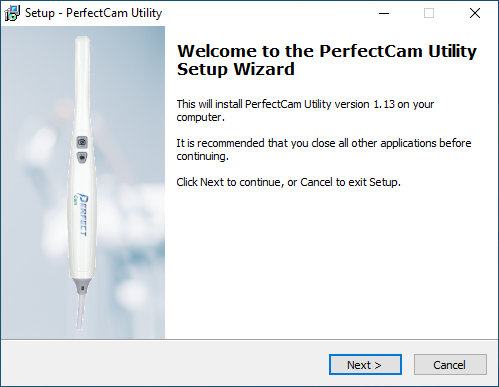
1. Install the PerfectCam Utility software. If you need a link for the download, it is: https://iocsnapshot.com/PerfectCamSetup.exe
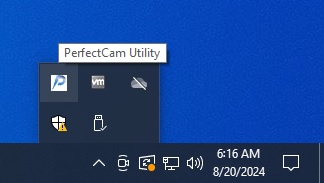
2. After the installation, you will see the PerfectCam icon in your system tray. Right-click it and select Dexis 10.
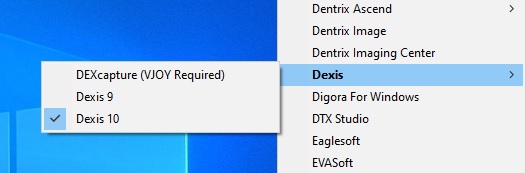
3. Configure Dexis 10 to use the camera. Open Dexis 10, right-click on the black background and go to Preferences.
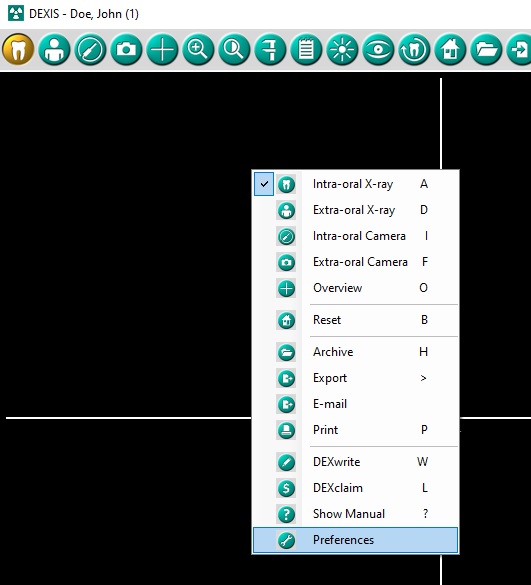
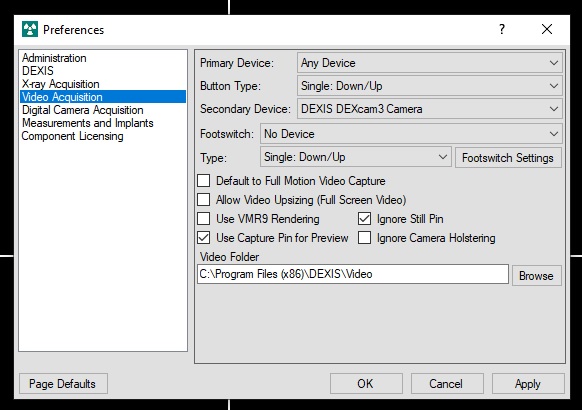
Click on Video Acquisition. Change the Primary Device to Any Device and click the OK button. If you do NOT see a live image from the camera, checkmark VMR9 Rendering checkmark box. Dexis 10 VMR9 has issues with some Video Card drivers or vice-versa.
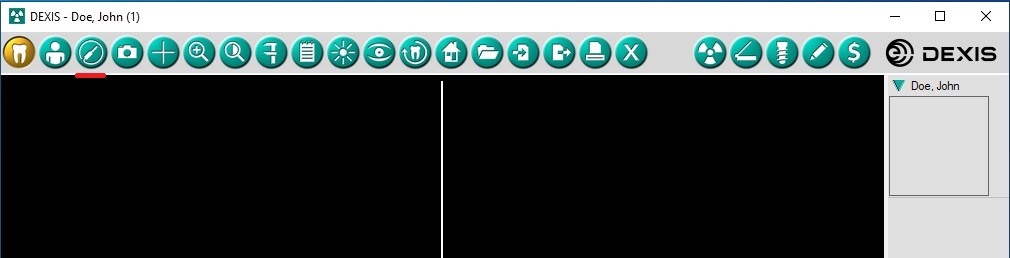
4. Click the Intraoral Camera icon that looks similar to a wand in the toolbar.
5. Now click the icon that looks like a circle to open the DexVideo module. You may now use the camera to take images. The capture button on the camera will snap a photo. When finished, close the window.
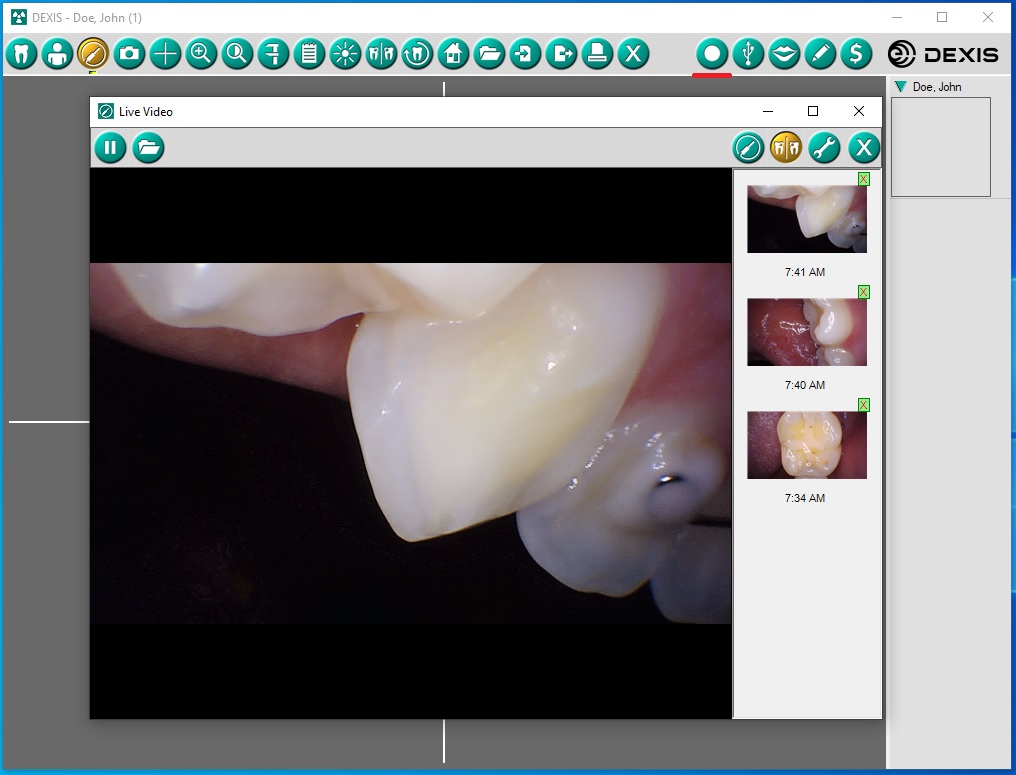
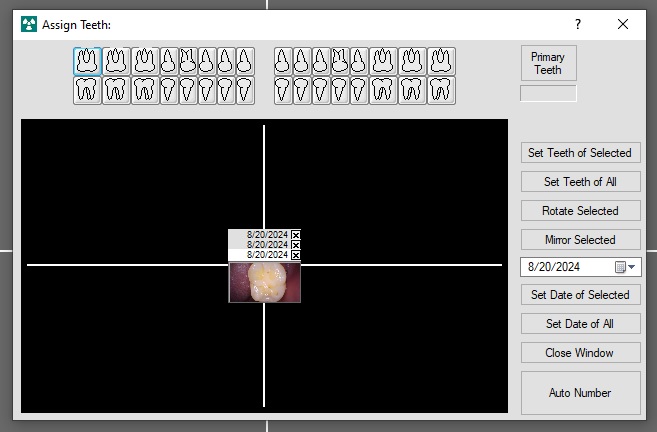
5. Now you may assign teeth numbers to the image or use AutoNumber.