Perfect Cam Manual for Archy
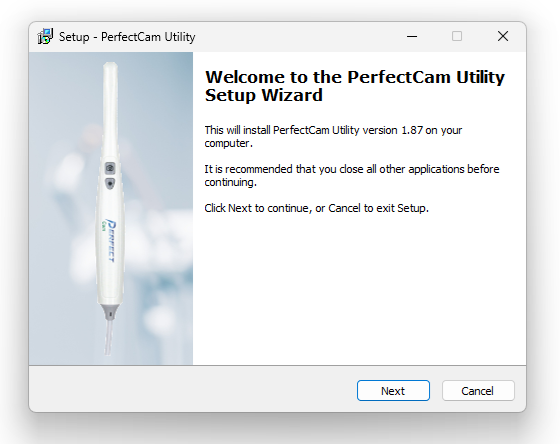
1. Install the PerfectCam Utility software. If you need a link for the download, it is:
https://iocsnapshot.com/PerfectCamSetup.exe
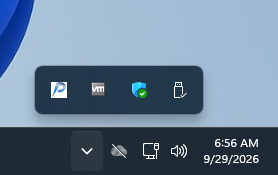
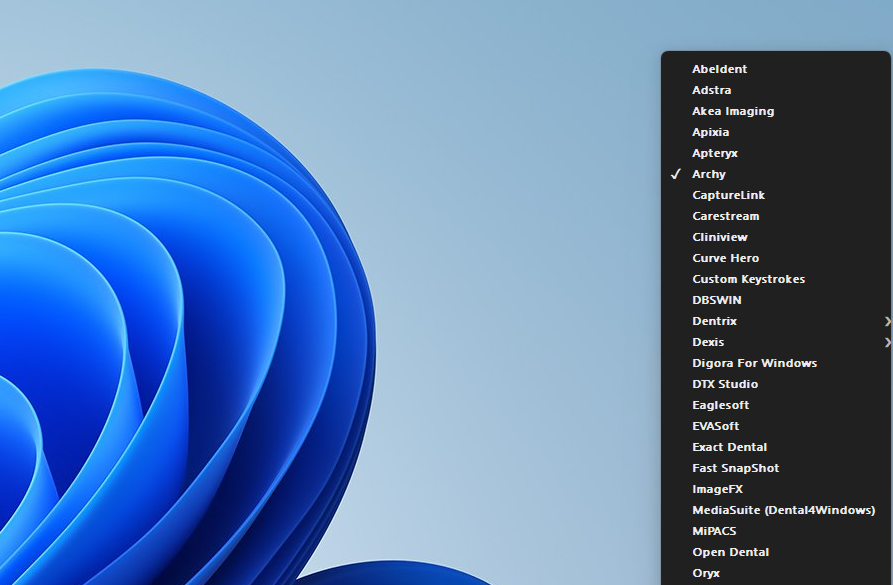
2. After the installation, you will see the PerfectCam icon in your system tray. Right-click it and select Archy.
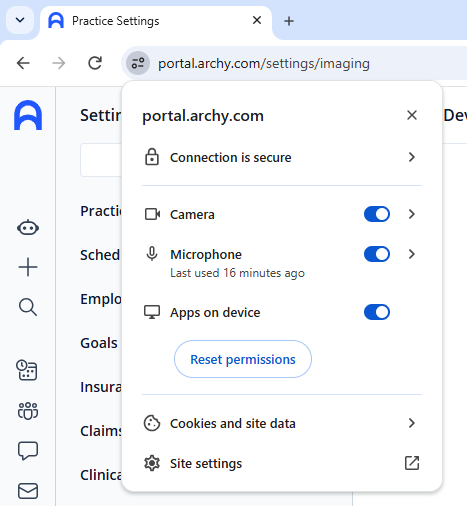
3. Login to Archy and make sure your browser has Camera permissions turned on.
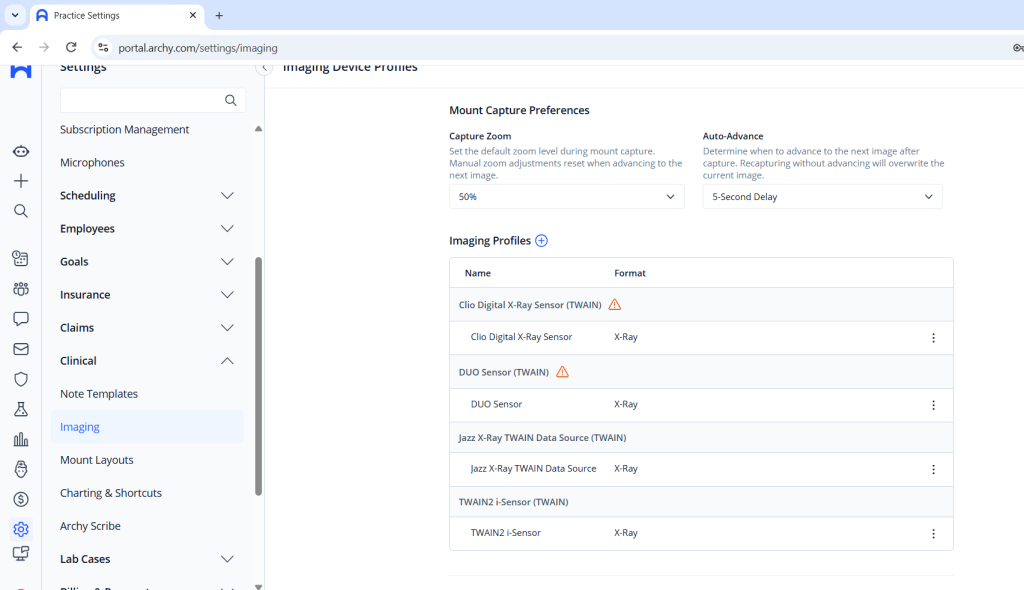
4. Be sure you are logged in as an Administrator so you can add the Camera to Archy. Go to Settings and Imaging. Click the plus sign next to Imaging Profiles.
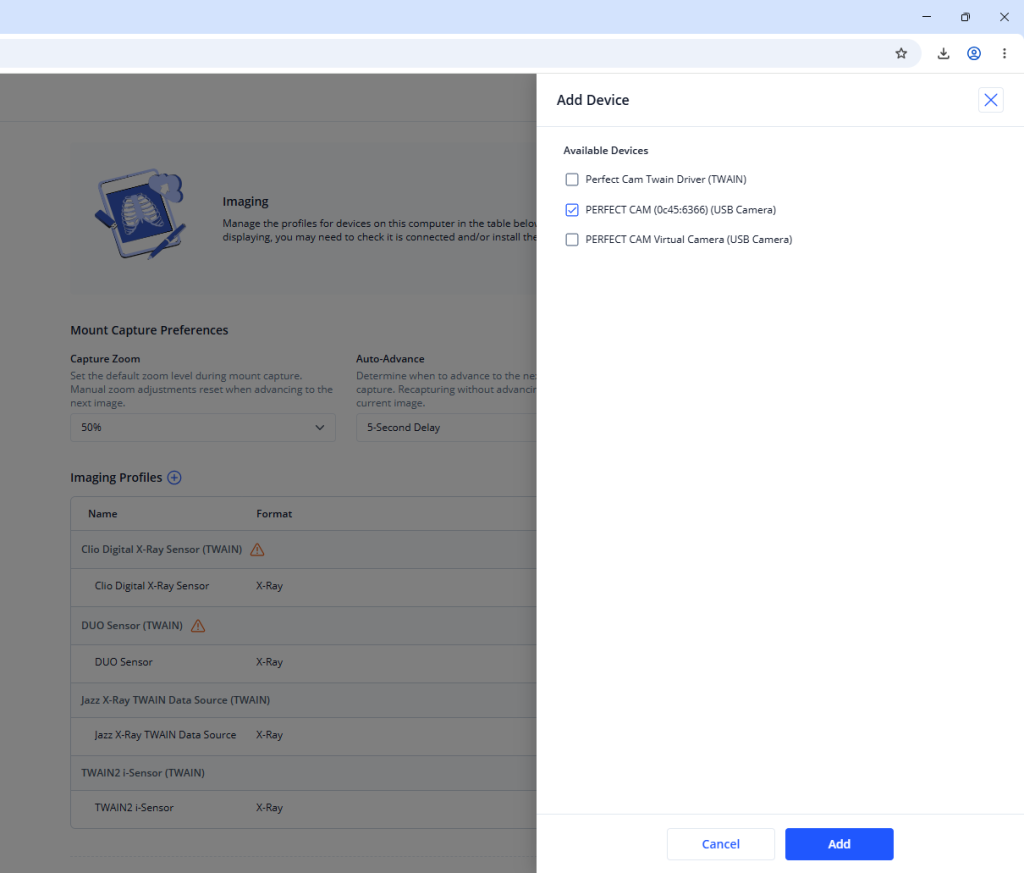
5. Put a checkmark next to PERFECT CAM (0c45:6366) (USB Camera) and then click Add.
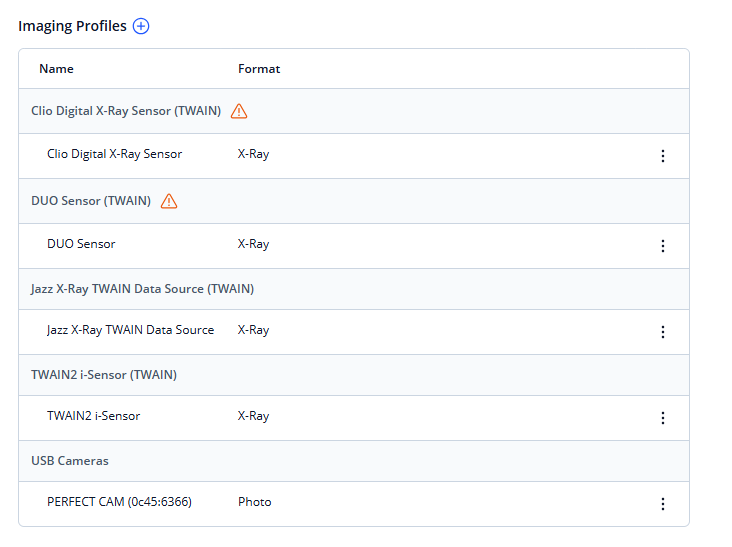
6. You should now see the PERFECT CAM under USB Cameras.
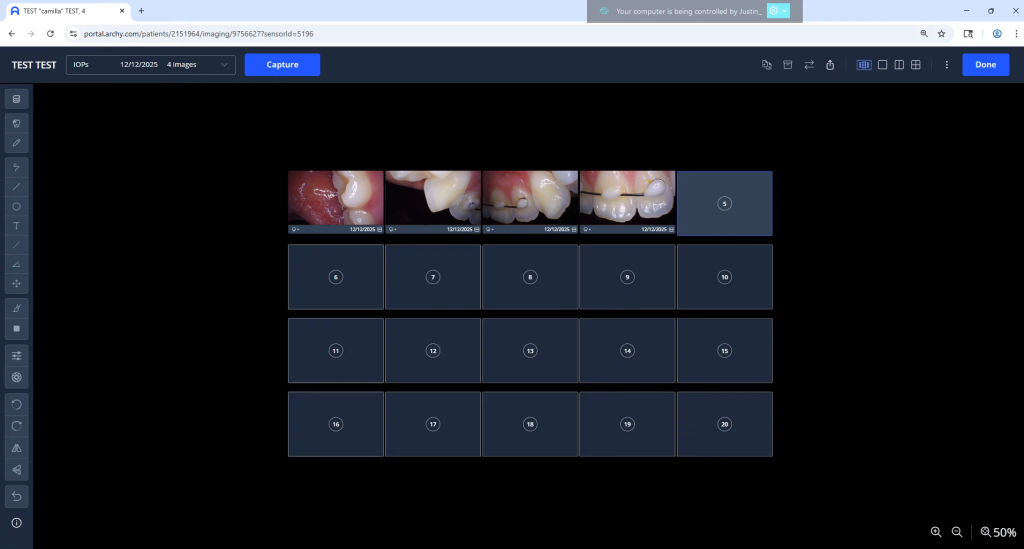
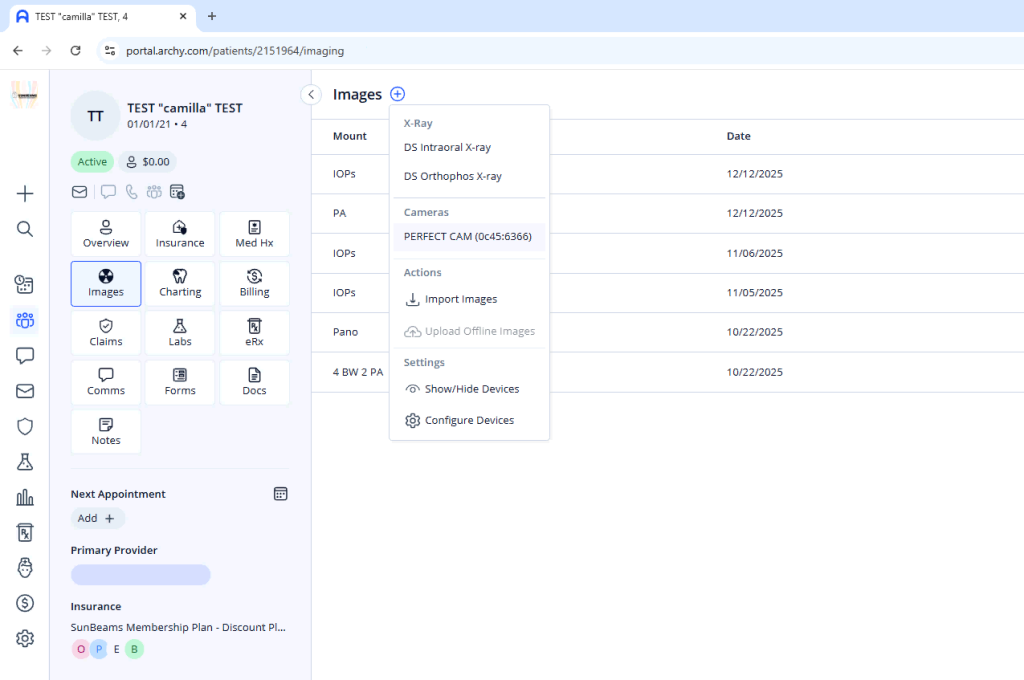
7. When inside of Archy with a patient, go to Images, Click the plus sign and choose PERFECT CAM (0c45:6366)
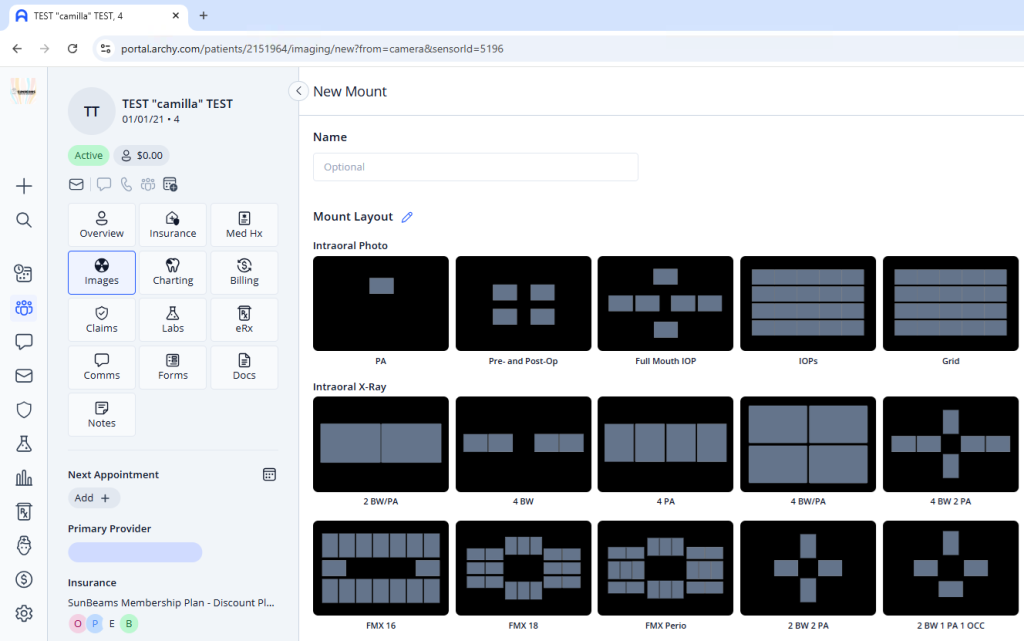
Next click on a mount.
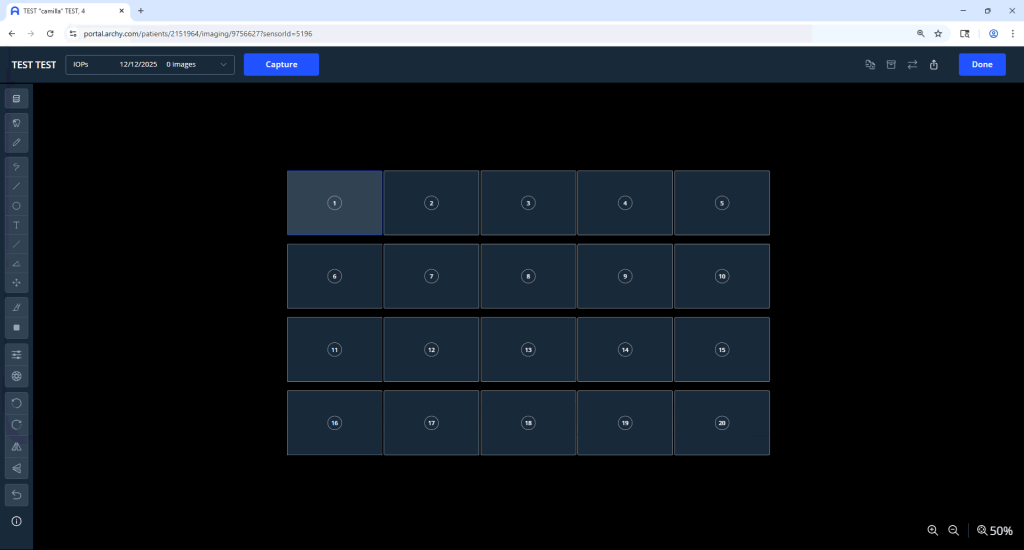
8. Click Capture.
Start taking photos with the camera’s capture button to take pictures.
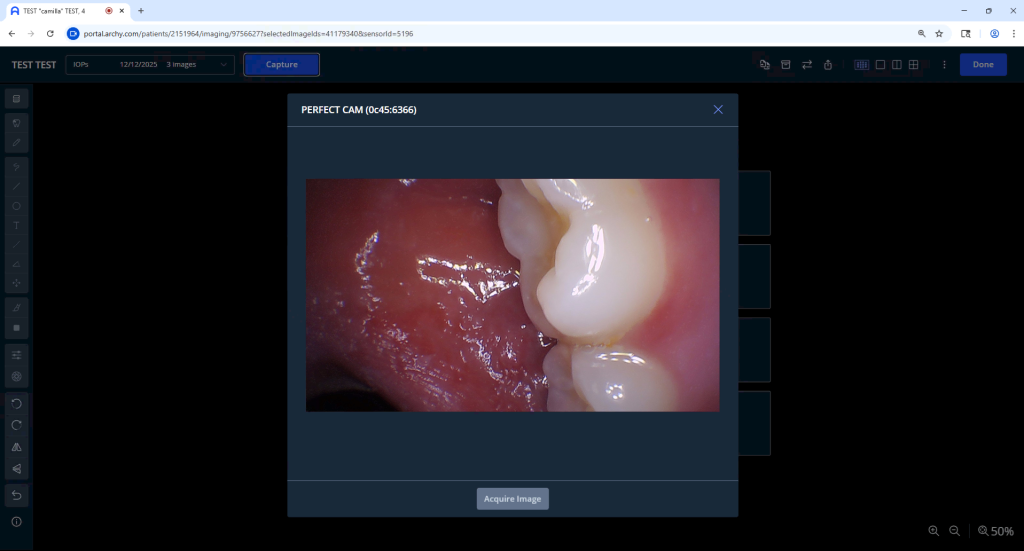
Click Done when finished.