Perfect Cam Manual for Romexis
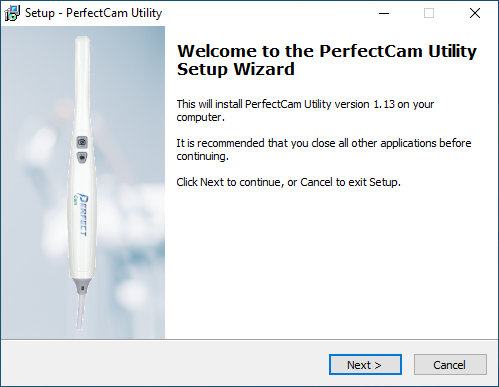
1. Install the PerfectCam Utility software. If you need a link for the download, it is:
https://iocsnapshot.com/PerfectCamSetup.exe
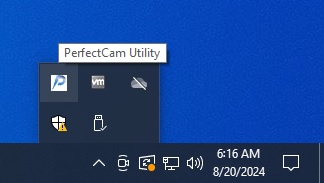
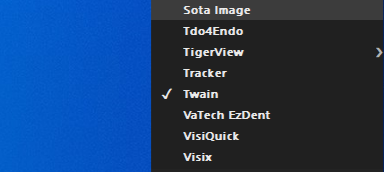
2. After the installation, you will see the PerfectCam icon in your system tray. Right-click it and select Twain.
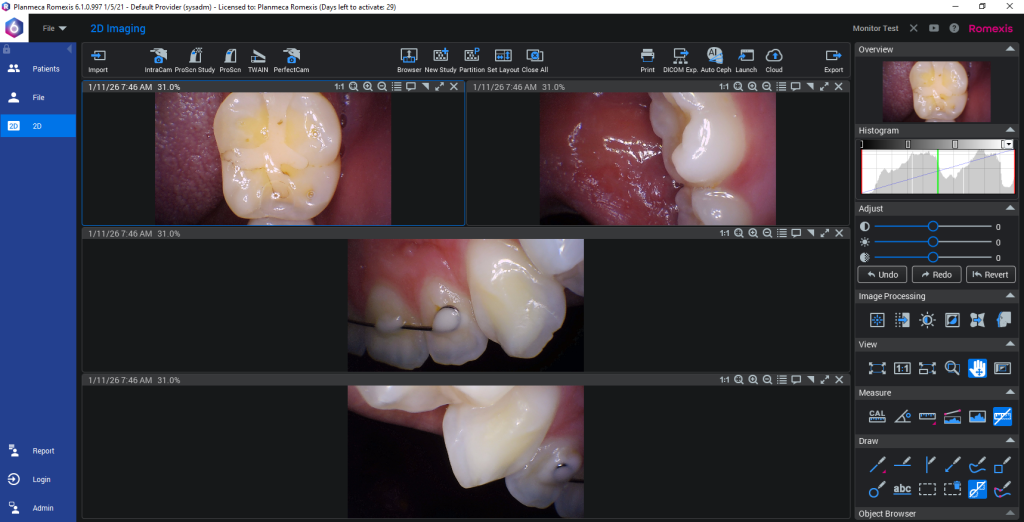
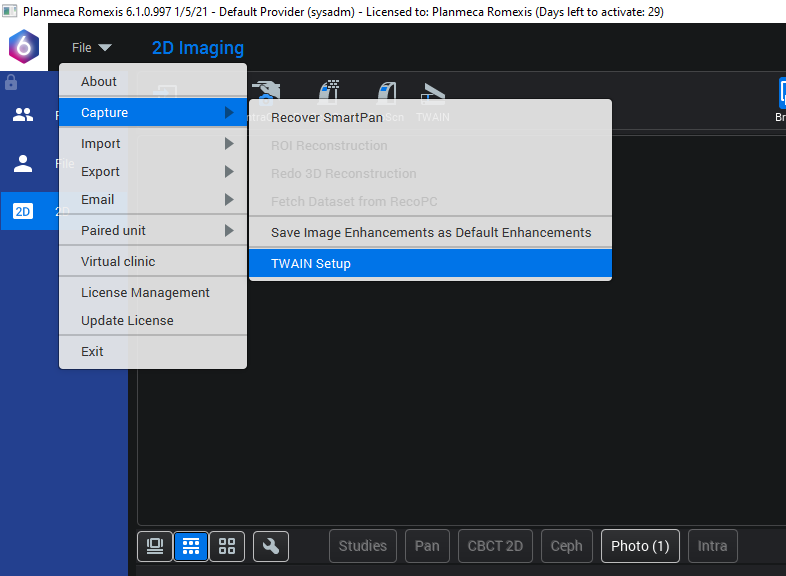
3. When inside of Romexis, go to the 2D Imaging with a patient selected. Click on File, Capture and then Twain Setup.
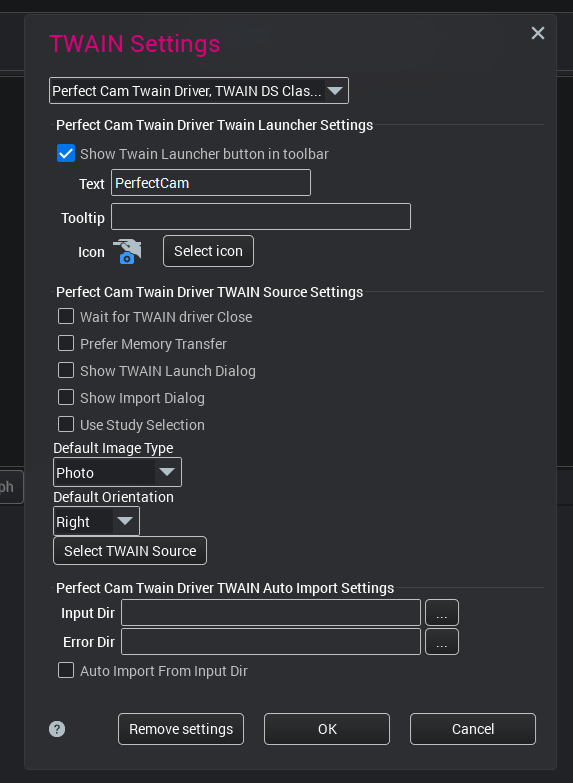
4. Select Perfect Cam Twain Driver in the drop down box. Checkmark Show Twain Launcher button in toolbar and make the Text PerfectCam. Set an icon as Intraoral Camera. The Default Image Type should be Photo. Click Okay. Restart Romexis.
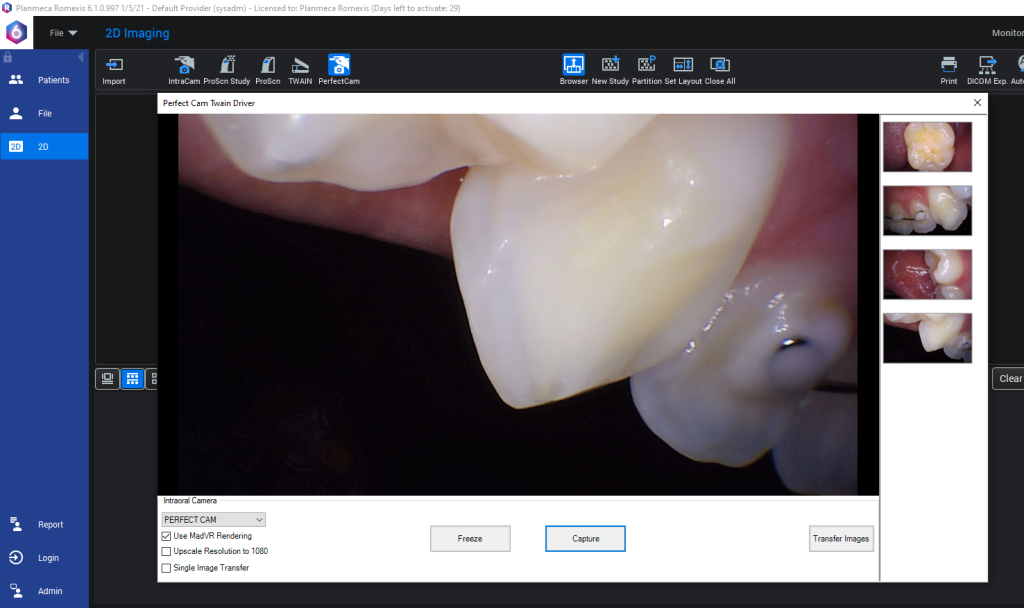
5. Click PerfectCam in the toolbar, take images and when finished click the Transfer Images.
All done.